Demo users (password demo): lena customer service, max sales, jana purchasing and accounting, tom workshop, admin ODI manager.
Ask ODI – the AI chat inside Odoo
A chat panel in Odoo's top bar. The AI answers with the user's own access rights, looks up live data with tools, and links every record it mentions. A Stop button ends a long answer; each user keeps a history of their conversations.
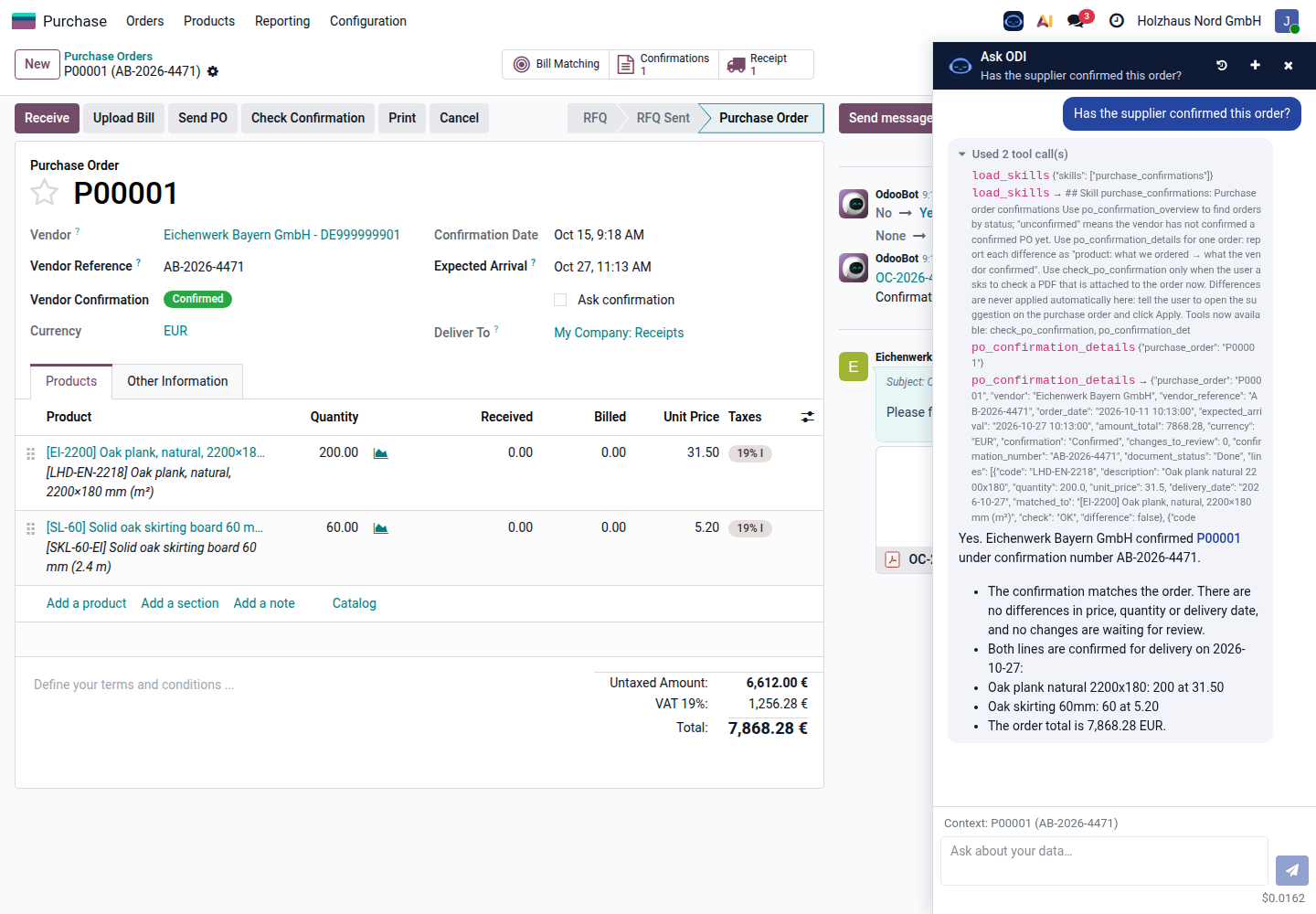
The answer refers to the open order: confirmed by the supplier with confirmation AB-2026-4471, no differences, the lines and the delivery date. Used 2 tool call(s) expands the steps the AI took – which skill it loaded and which data it read – so every answer can be checked.
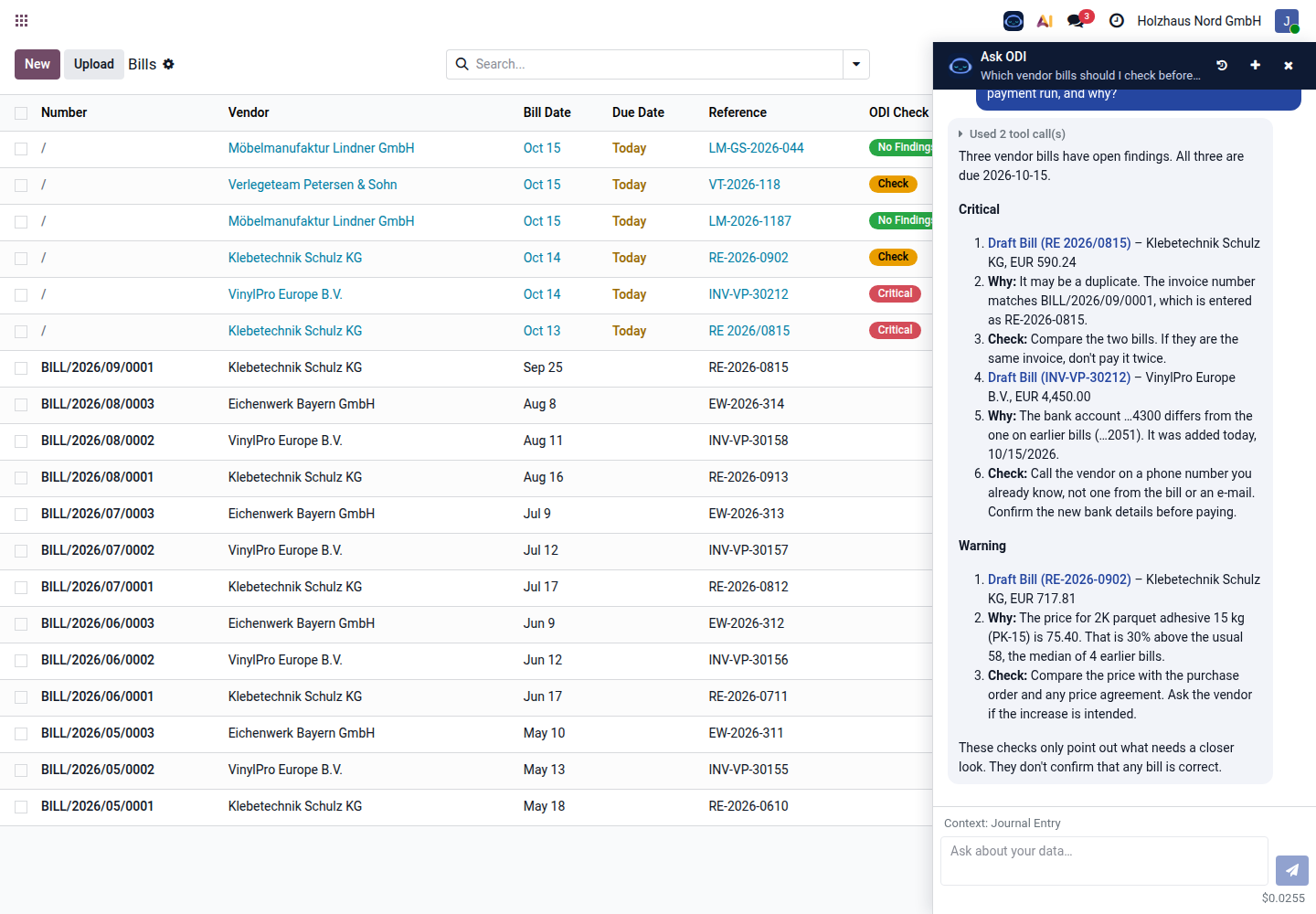
The answer lists the bills the vendor bill checks flagged – a possible duplicate, a changed bank account and a price 30 % above the usual – with links, why each was flagged and what to check. It ends by saying that the checks only point out what needs a closer look. Cost of the answer: $0.026.
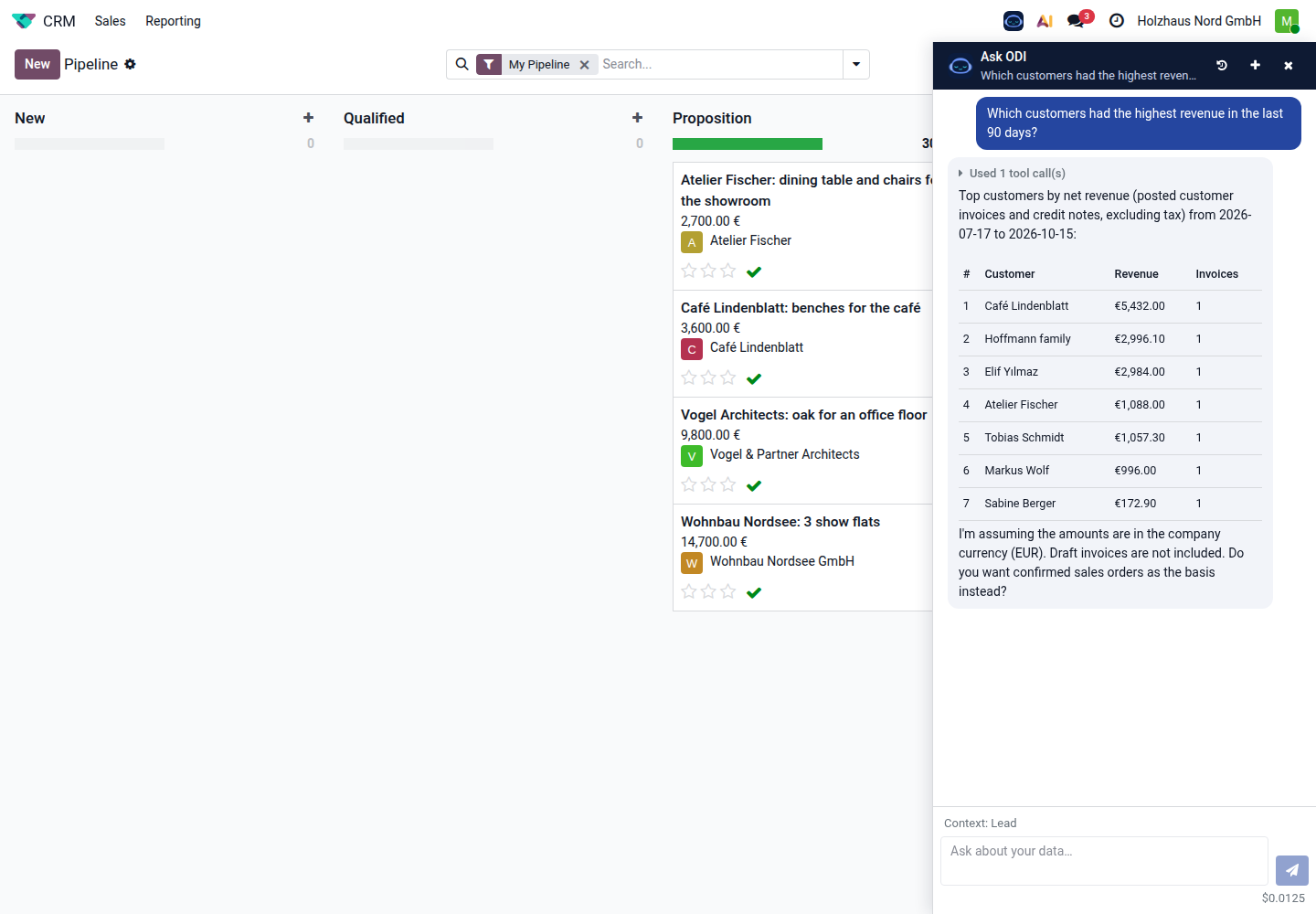
A ranking from posted customer invoices, as a table, with a note on what is included and an offer to use confirmed sales orders instead.
Knowledge search (RAG)
Attachments (PDF and text files), e-mails, chatter notes and text fields are split into pieces and indexed in the customer's own database: by words (PostgreSQL full-text, with German, English and other word forms) and by meaning (vectors in pgvector). Users only find text from records they may open; every answer names its source.
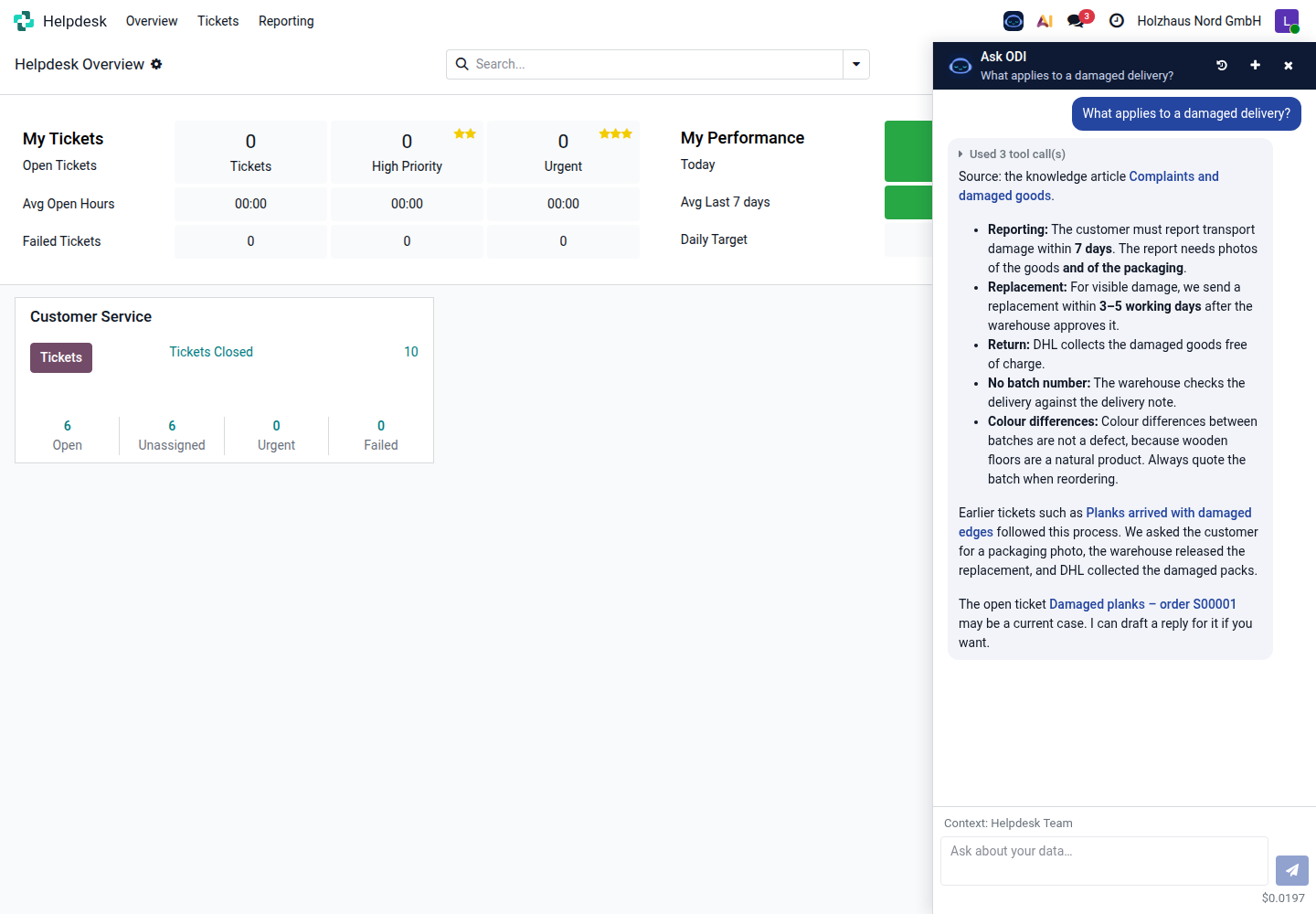
The answer comes from the company's knowledge article on complaints (linked), and the AI points to similar solved tickets and to the open ticket of the Hoffmann family.
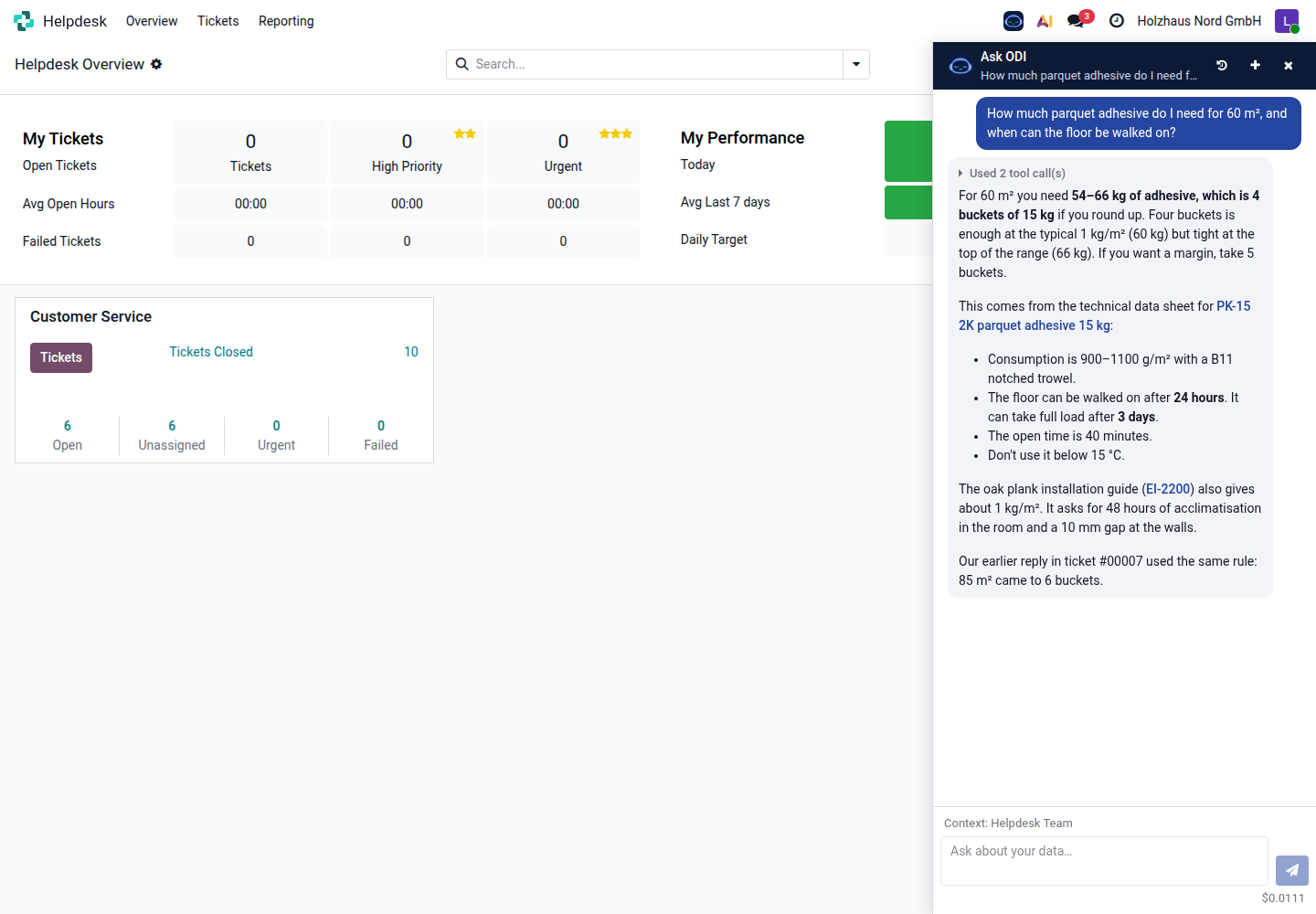
Answered from the technical data sheet, a PDF attached to the product: 54–66 kg for 60 m², so four 15 kg buckets, or five with a margin; walkable after 24 hours, full load after 3 days. The AI also notes that an earlier answer of the team in a ticket used the same rule.
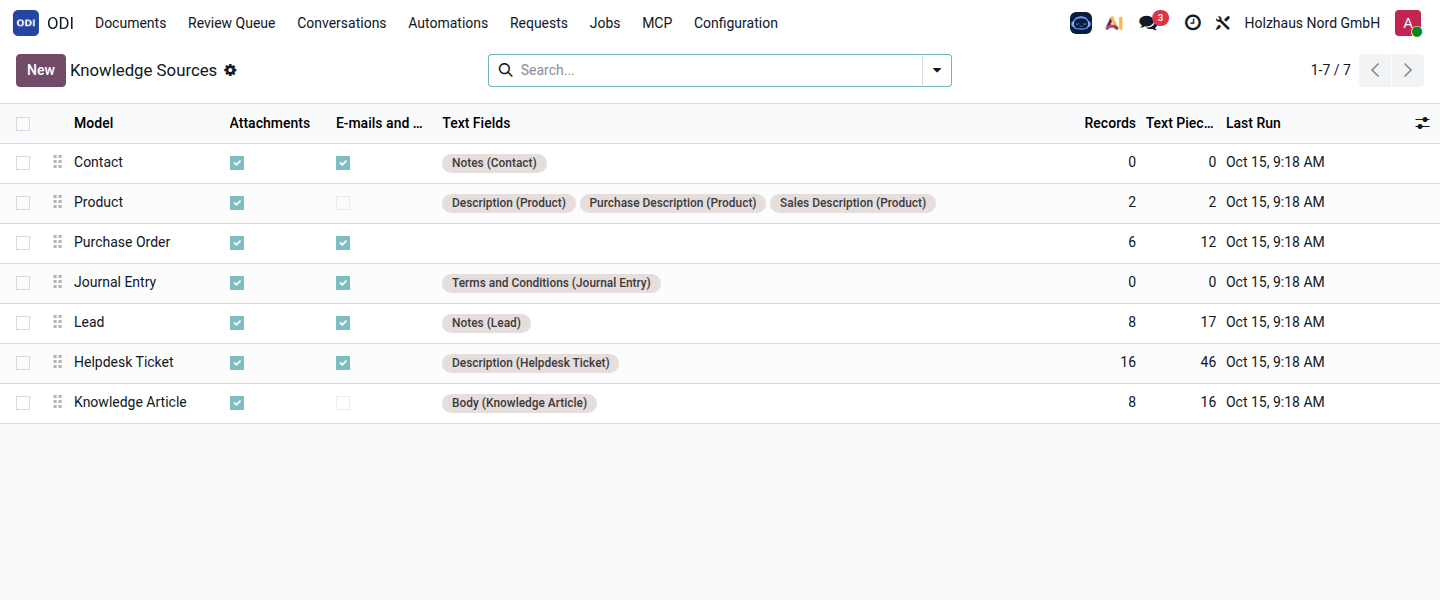
What is indexed per area – attachments, e-mails and notes, text fields – and how many text pieces each has. Vectors are created with any embedding model; here the local model bge-m3, so no text leaves the server.
Supplier order confirmations
Confirmations that suppliers e-mail on a purchase order are read automatically and matched line by line, also with the supplier's own article numbers.
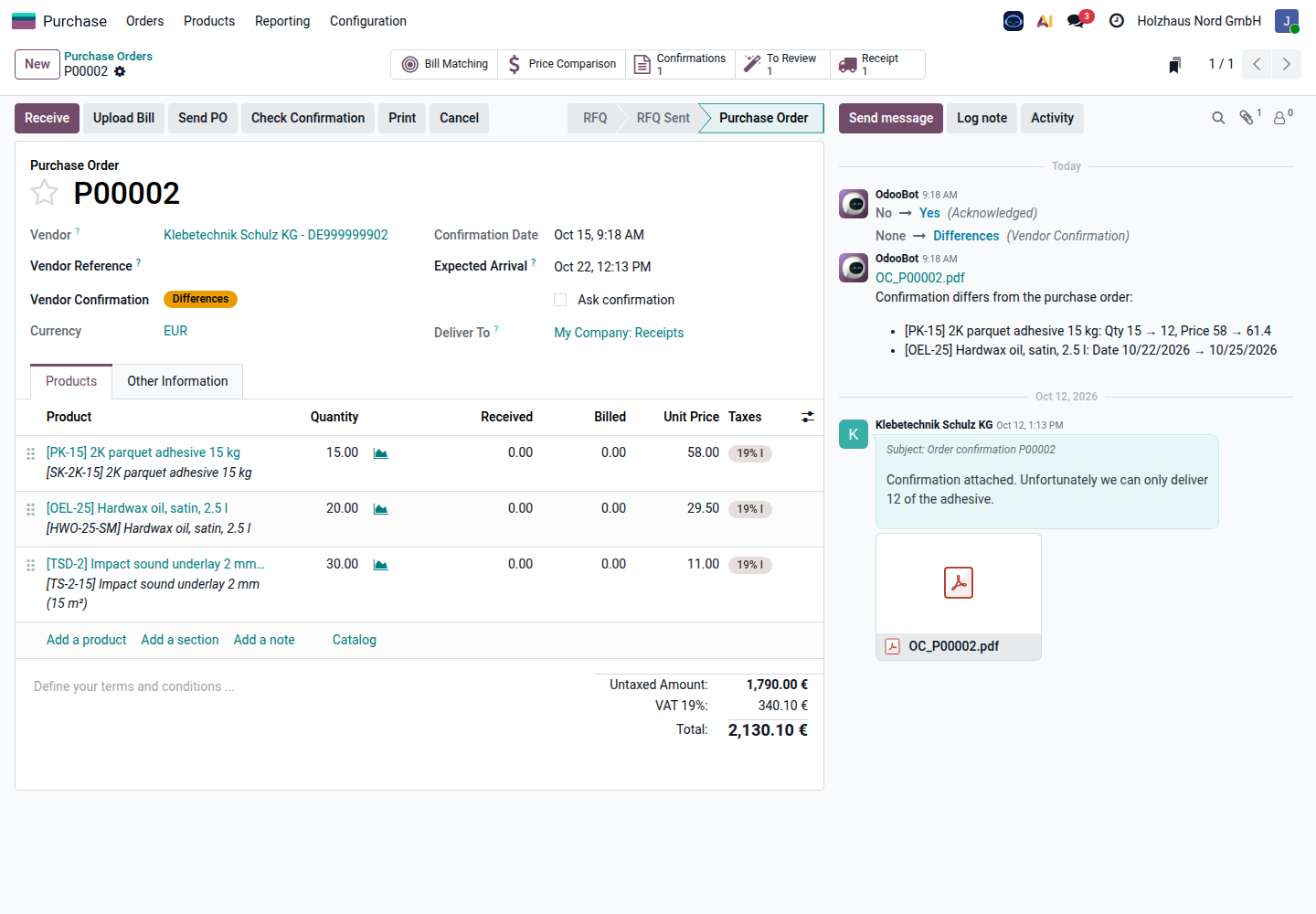
The order is marked Differences. The chatter note lists them: adhesive 15 → 12 pieces and price 58.00 → 61.40, and the oil arrives three days later. The PDF stays attached to the supplier's e-mail.
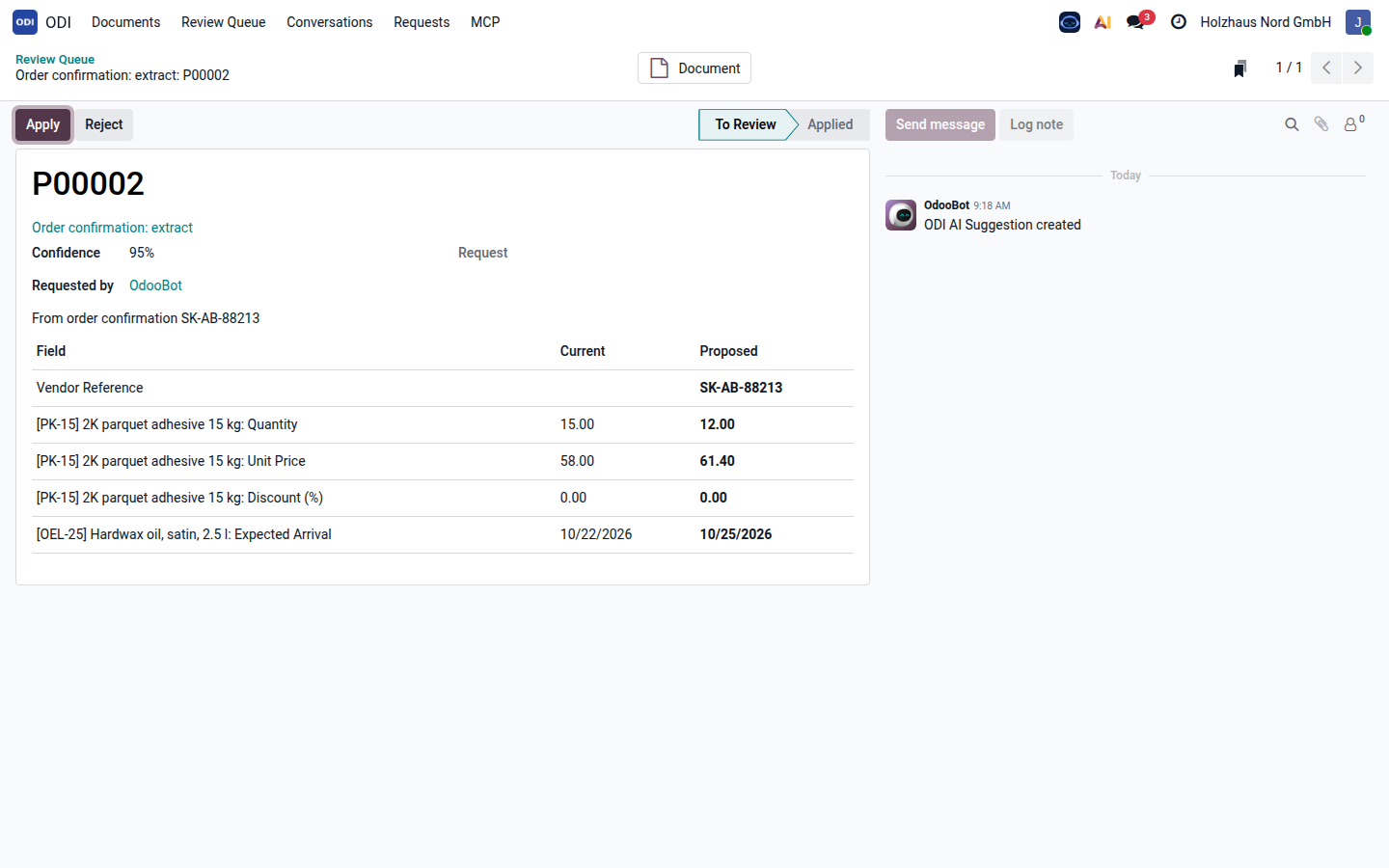
Current and proposed values side by side: the supplier's confirmation number, the new quantity, price and delivery date. Apply writes them to the order in one click.
Vendor document sorting
Every PDF a vendor sends on an order is read once and sorted: order confirmation, invoice, credit note, delivery note, quote, or something else.
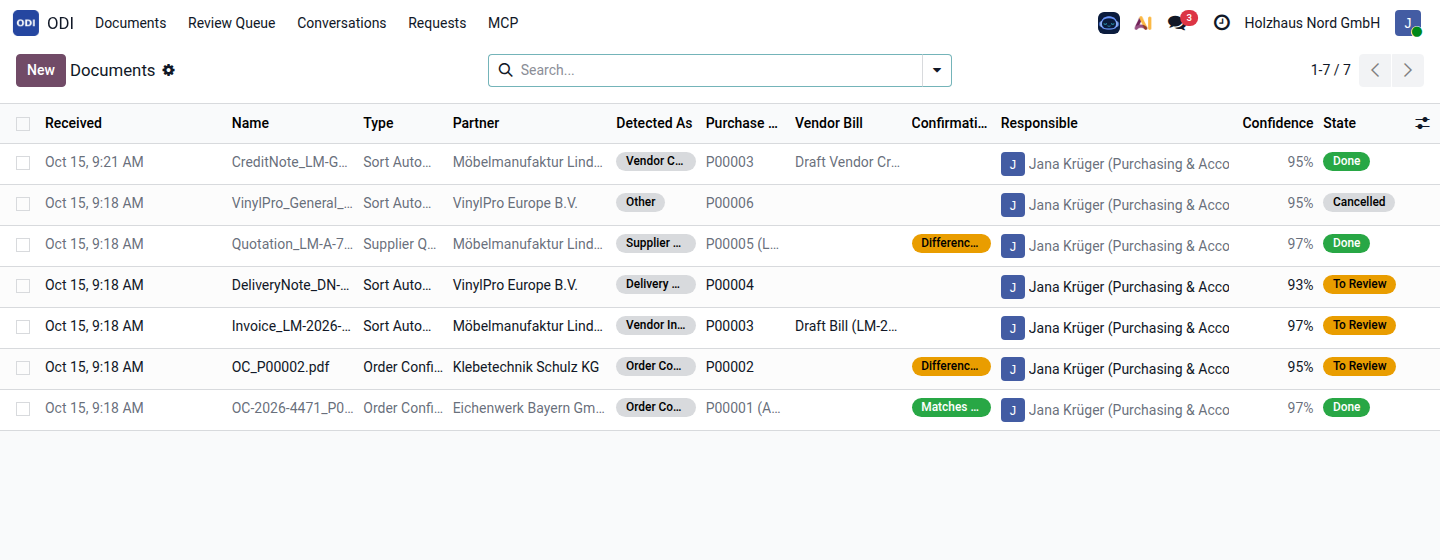
Two order confirmations (one matching, one with differences), a quote, a delivery note, an invoice and a credit note – each linked to its purchase order and, for the invoice and the credit note, to the vendor bill. The supplier's general terms of sale were recognised as Other and set aside.
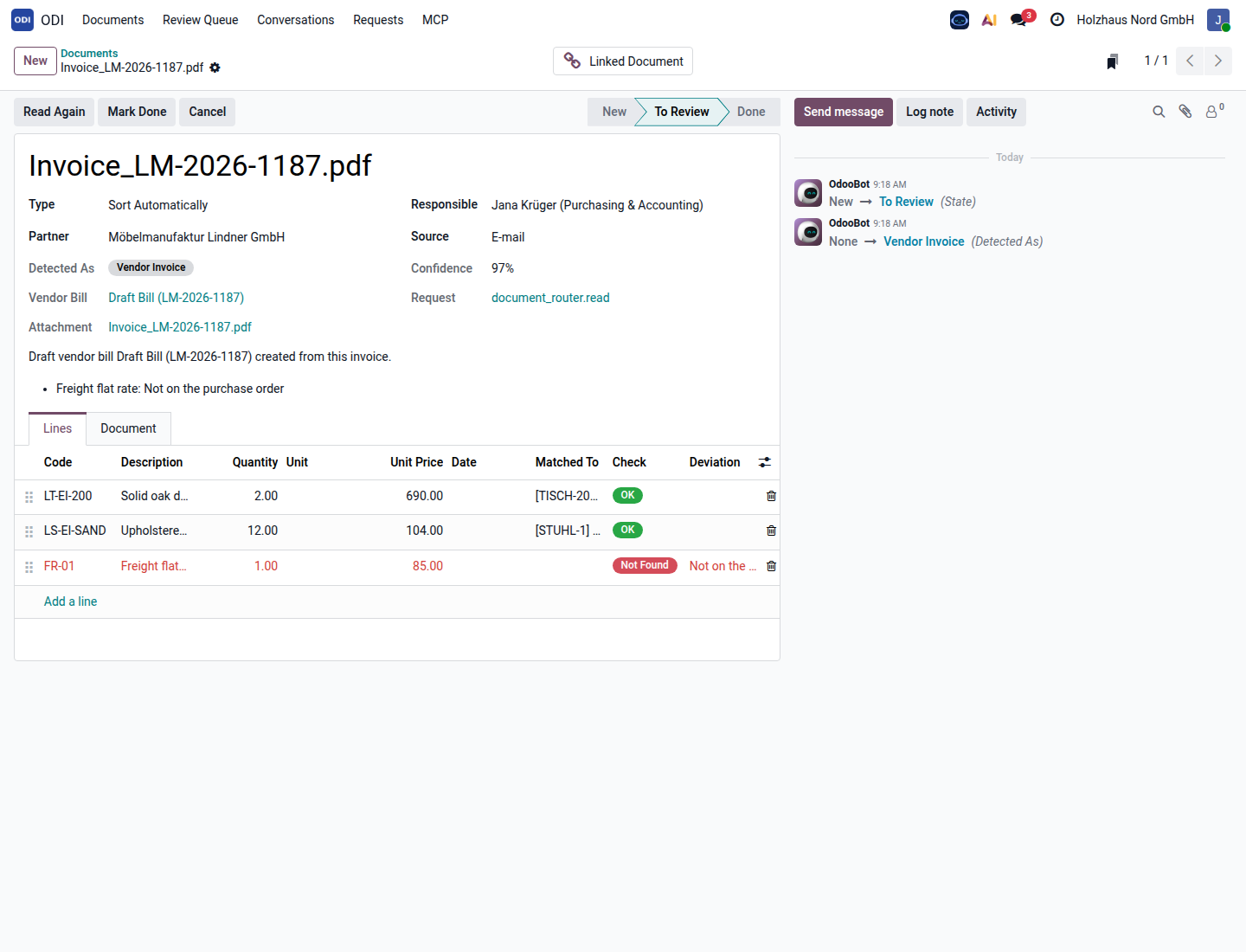
The invoice lines are matched to the order lines (OK); the freight flat rate is not on the order and is flagged in red. The document links the draft bill.
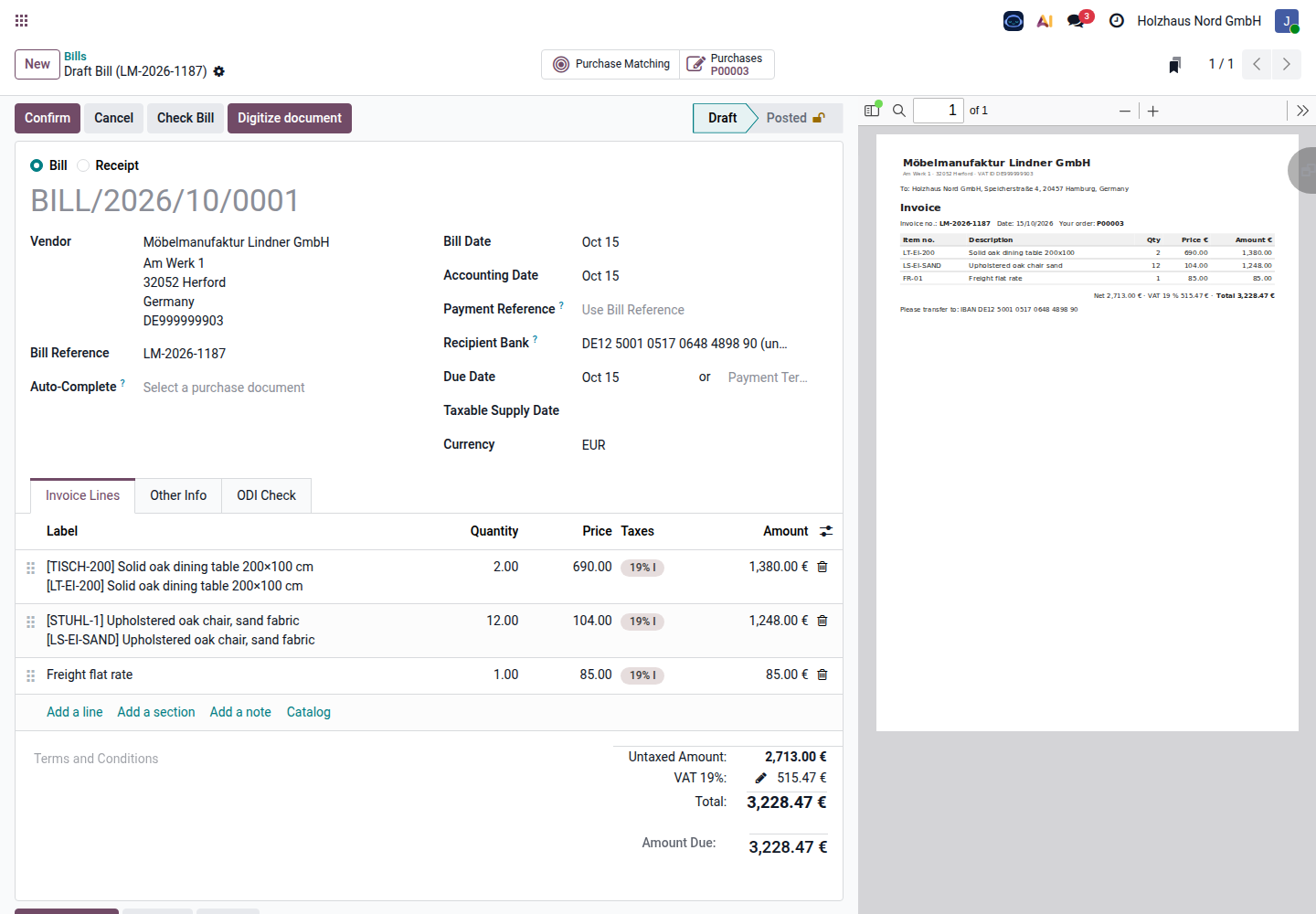
Built from the purchase order lines (taxes, accounts, link to the order), with the vendor's invoice number, date, prices and the freight line. The total, 3,228.47 €, equals the PDF. Nothing is posted: the accountant checks and confirms.
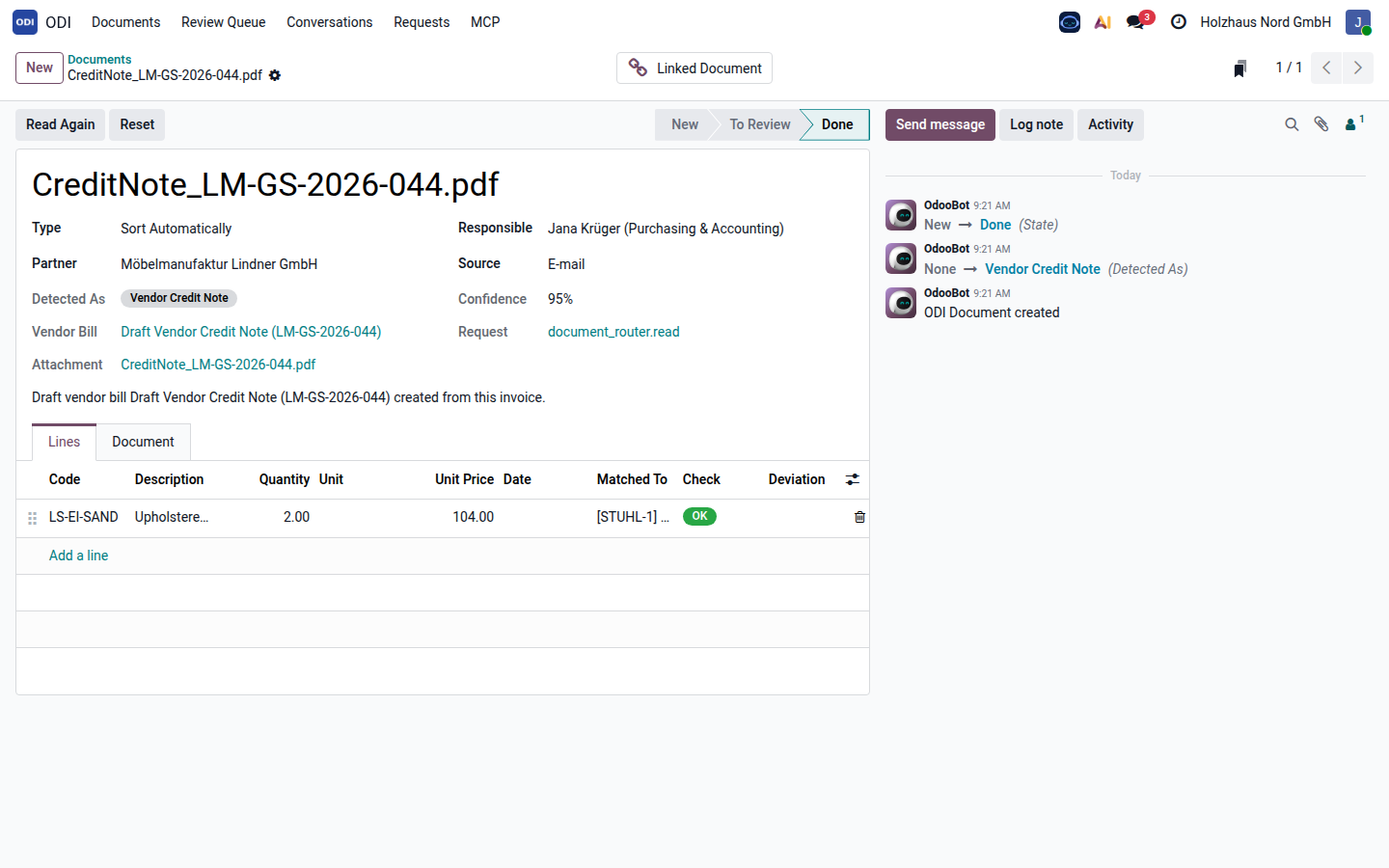
Recognised as a vendor credit note and turned into a draft vendor refund of 247.52 €, linked to the same purchase order.
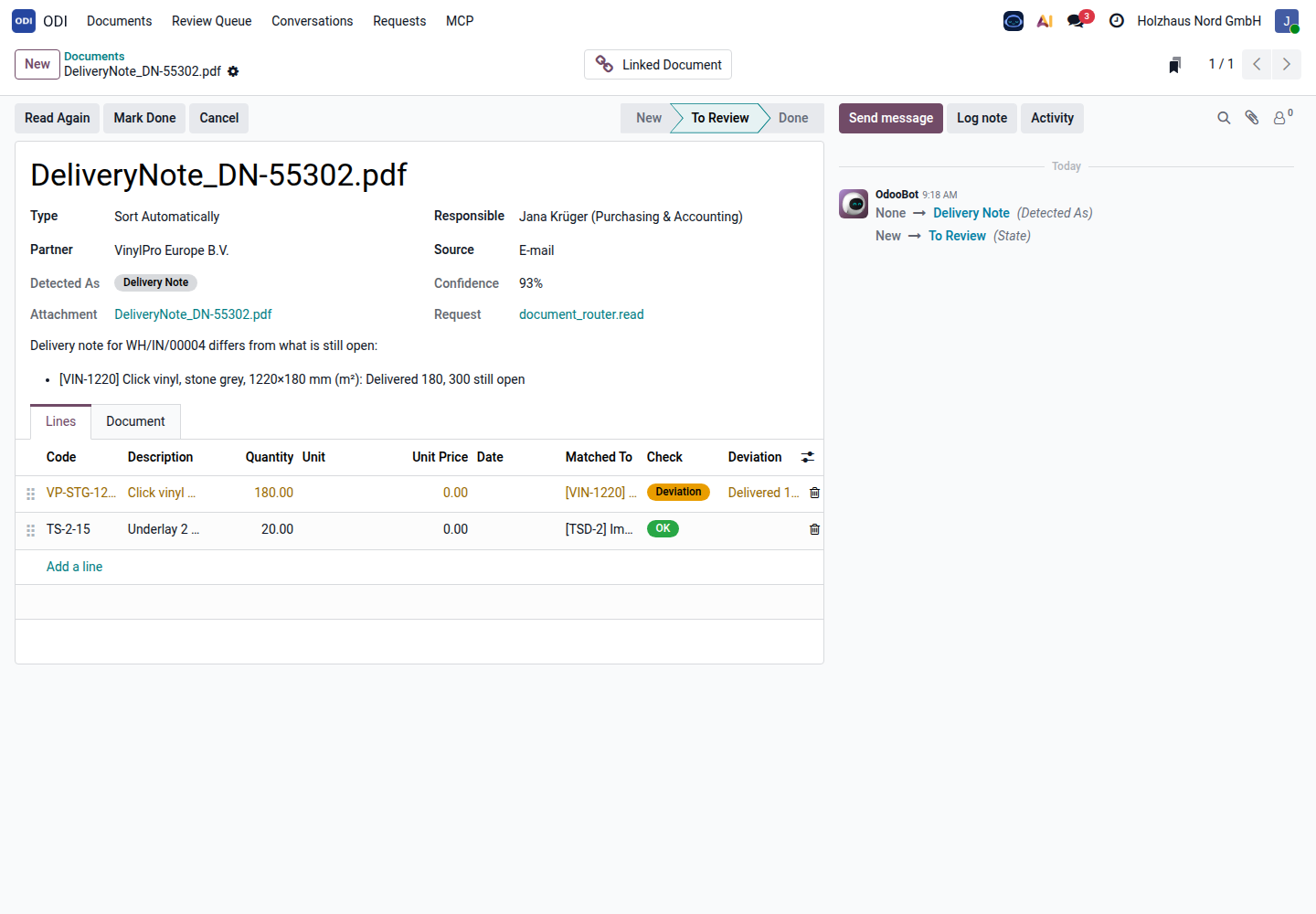
The supplier delivered 180 of 300 m² vinyl. ODI compares the delivery note with what is still open on the order.
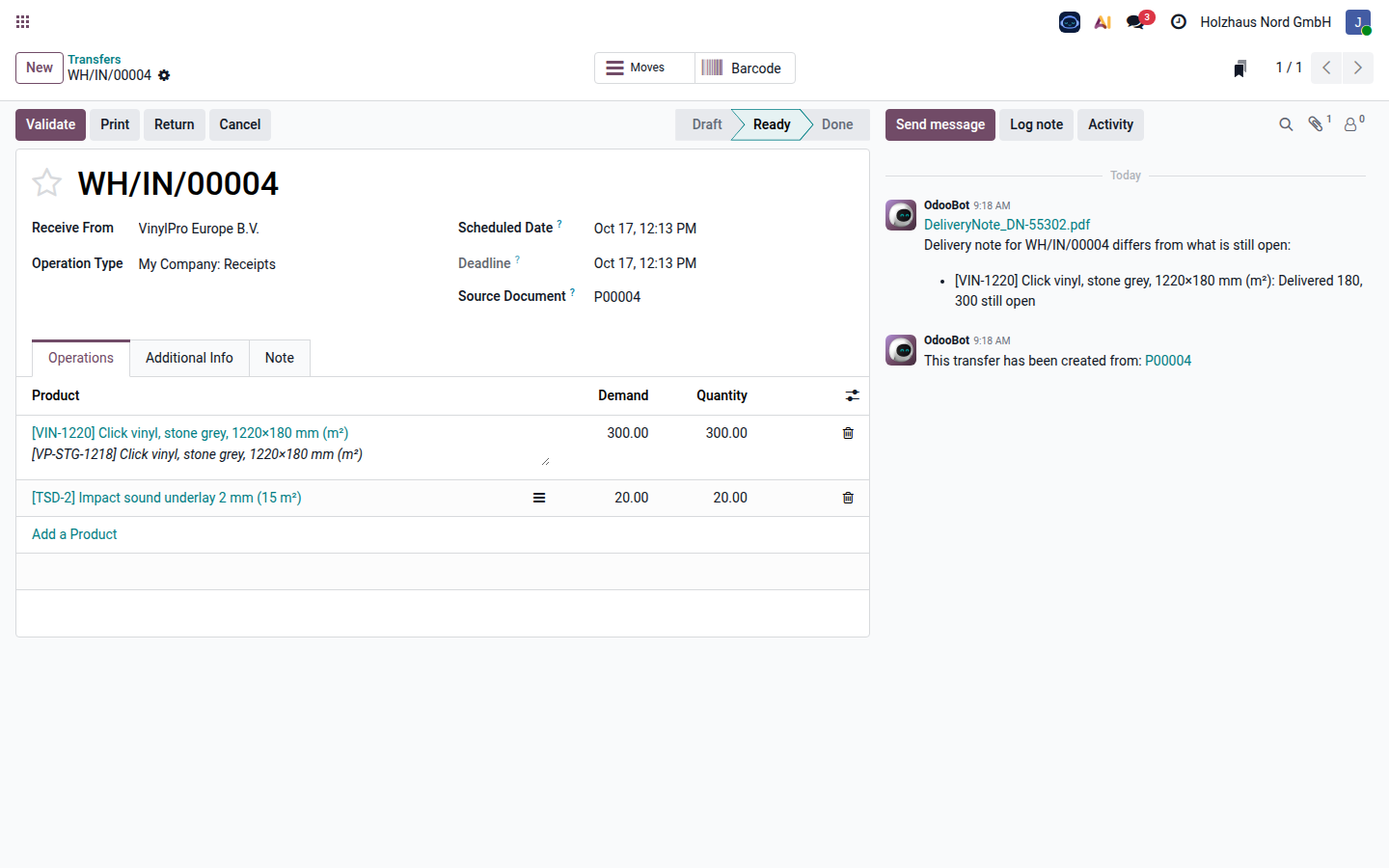
The PDF and the note "delivered 180, 300 still open" are attached to the open receipt, where the warehouse books the goods.
Supplier quotes
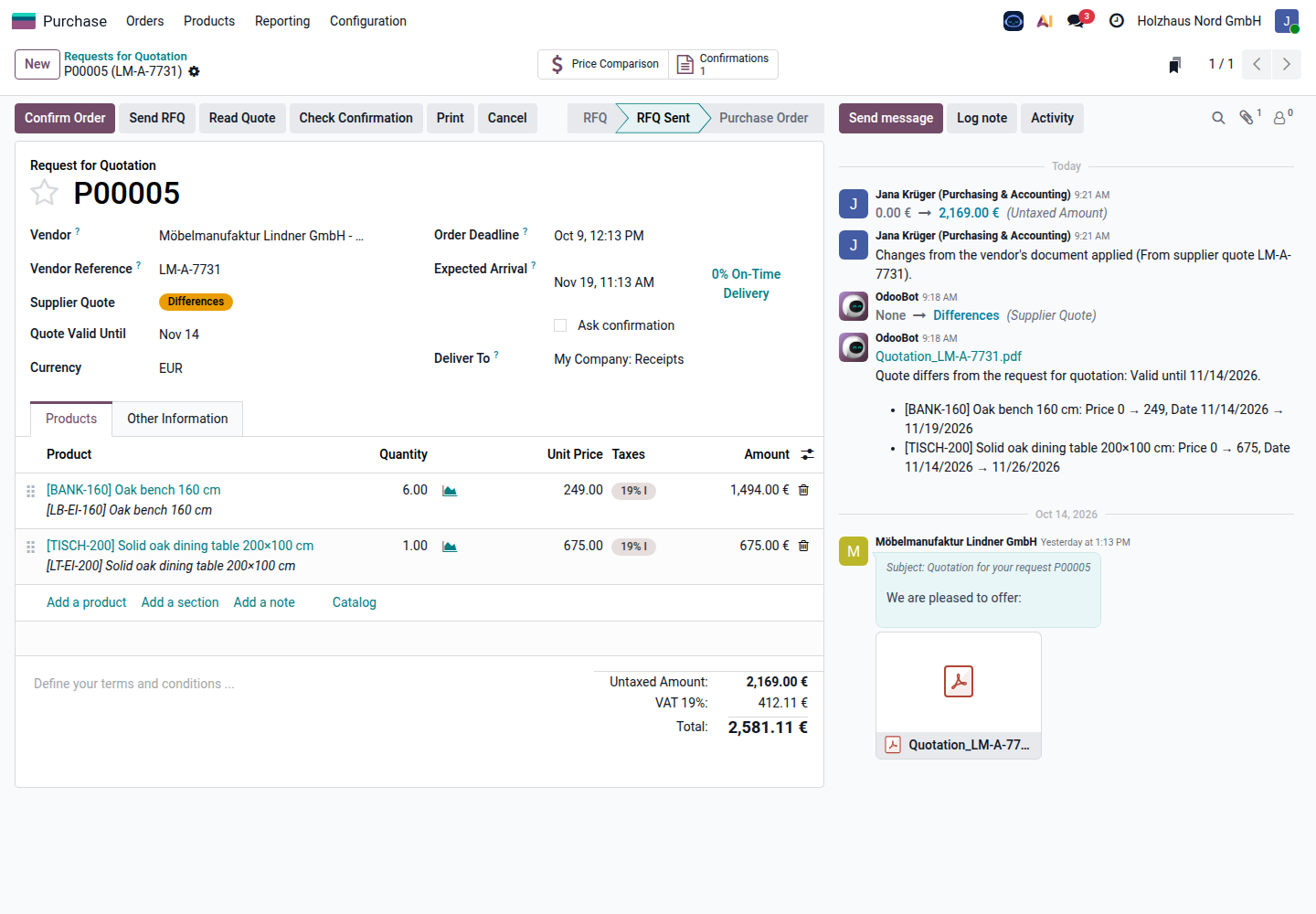
The quote is read and matched to the request: prices for the bench and the table, delivery dates, valid until Nov 14. The new prices wait in the review queue.
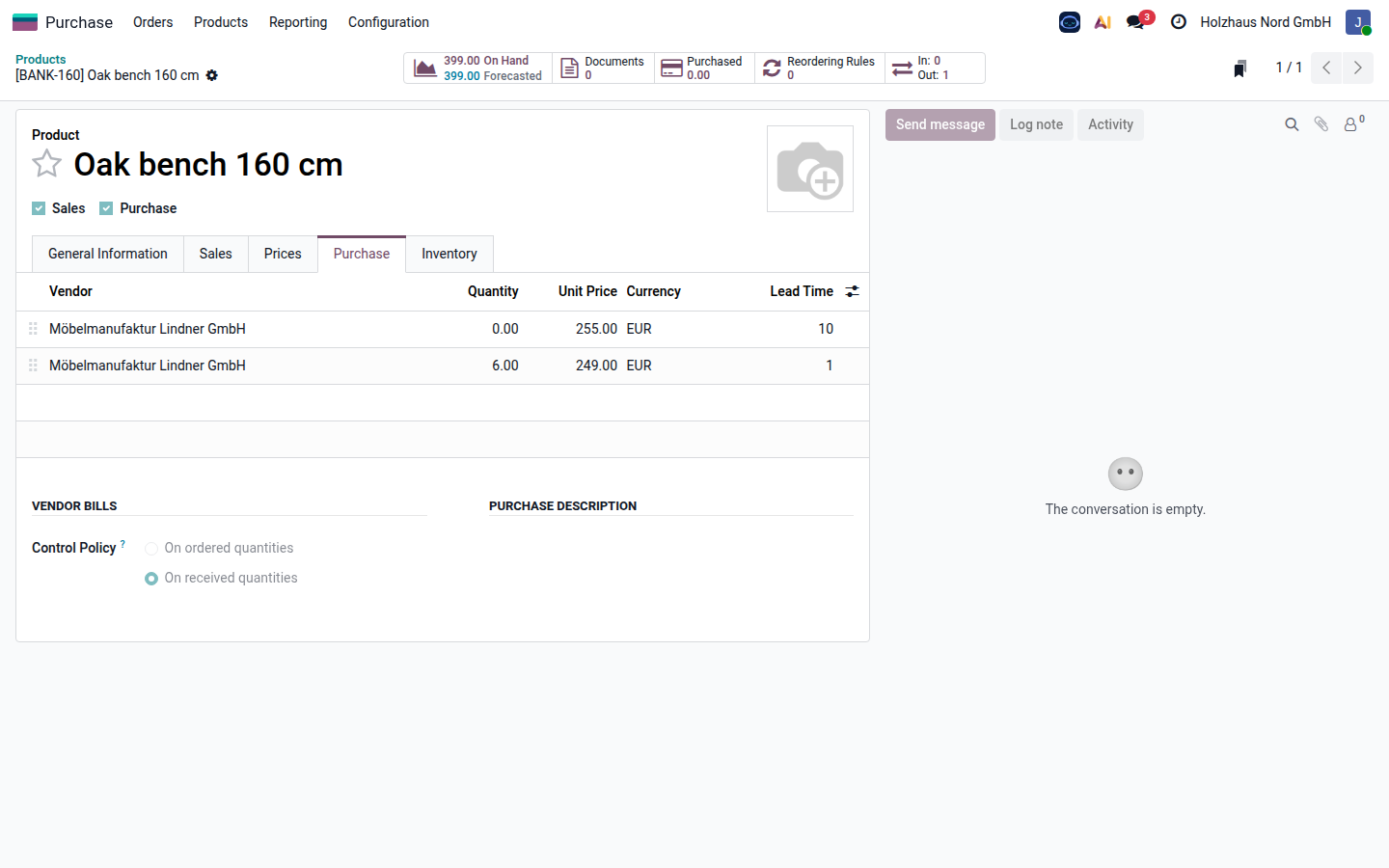
The bench now has the supplier's quoted price, 249.00 € from 6 pieces, next to the old price – with the quote's validity as end date, so future orders use it.
Vendor bill checks
Every vendor bill is checked before payment – whether entered by hand, read by Odoo's bill reading or created by the document sorting. The checks are rules on the company's own data: fast, free to run and the same every time. They run every hour and with the Check Bill button.
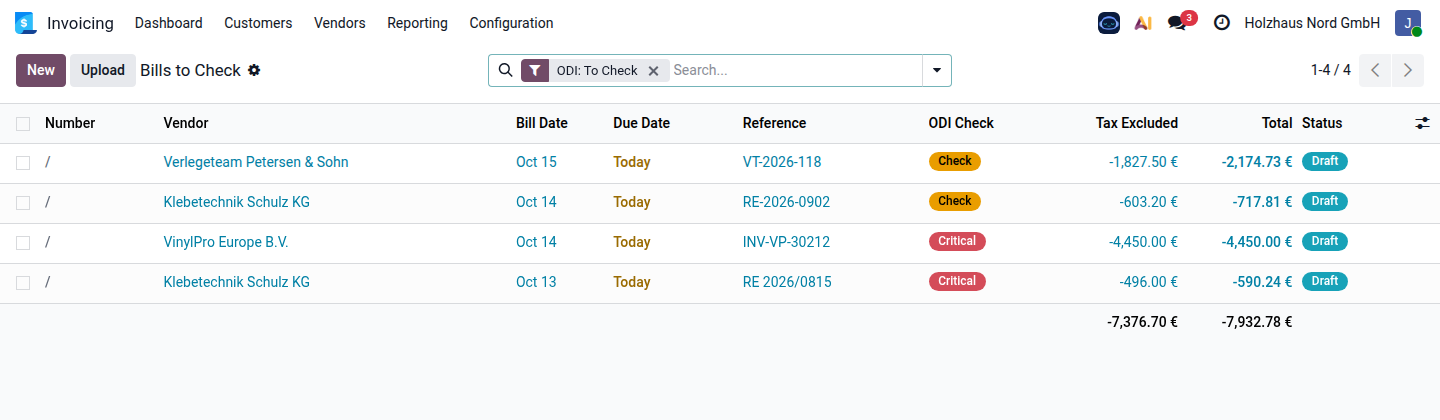
Critical bills (duplicate invoice number, changed bank account) and warnings (unusual price, differences to the order), each with its ODI status.
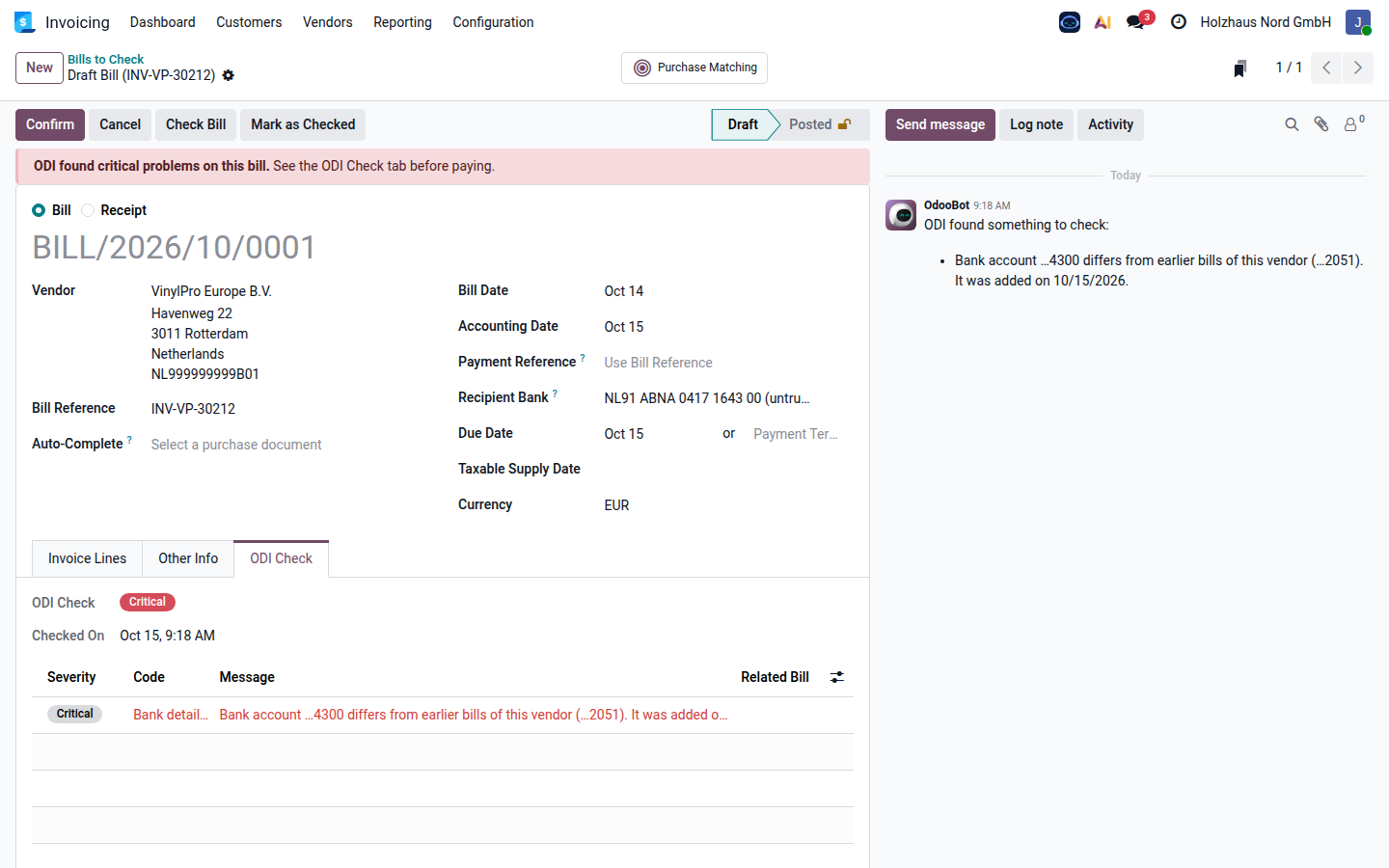
The red banner and the ODI Check tab: the bank account …4300 differs from the account on the vendor's earlier bills (…2051) and was only just added – the classic invoice fraud. IBANs are shown masked.
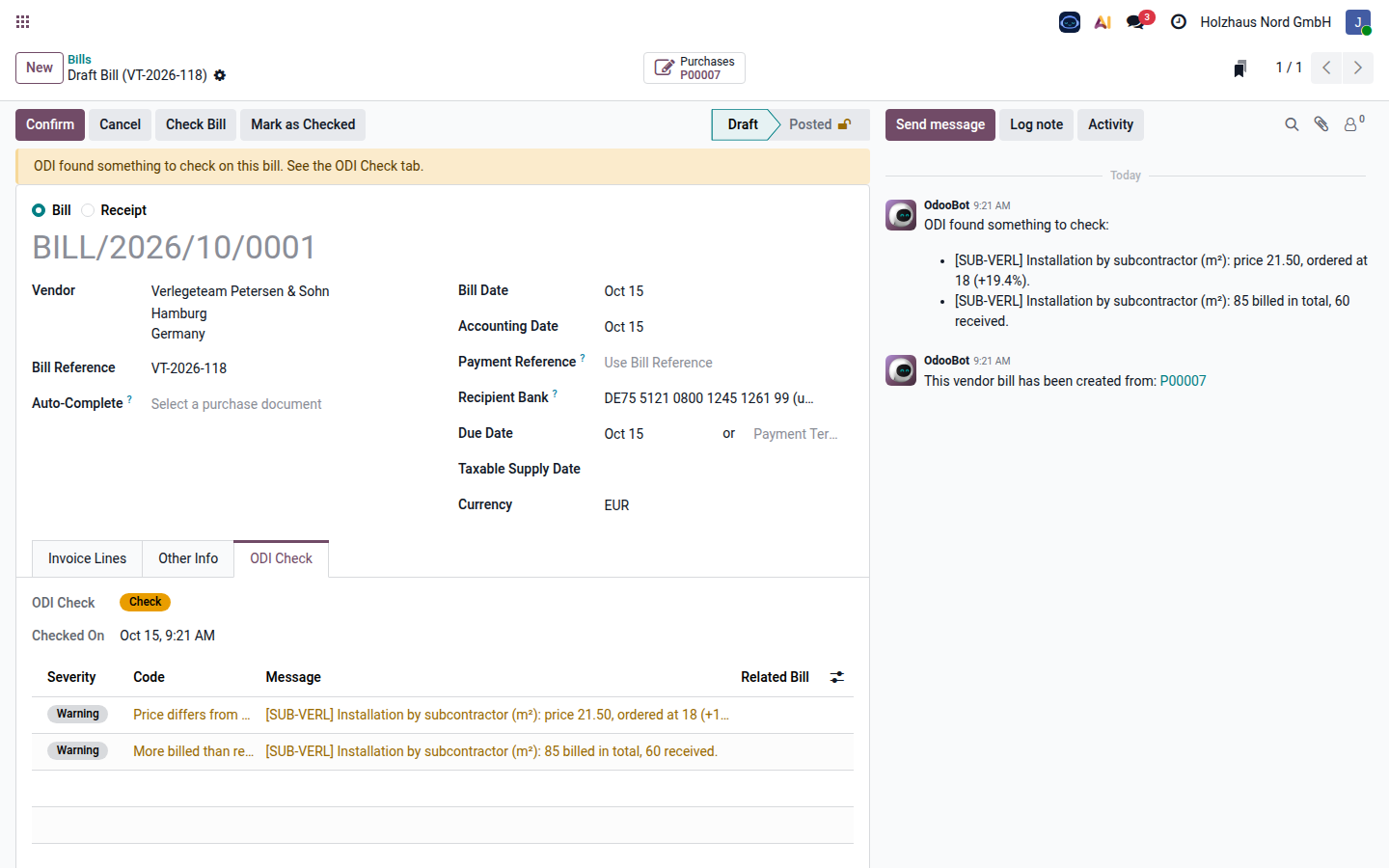
The installer billed 85 m² at 21.50 €, the order was for 60 m² at 18.00 €, and 60 m² were confirmed as done: two warnings, price differs from the order (+19.4 %) and more billed than received.
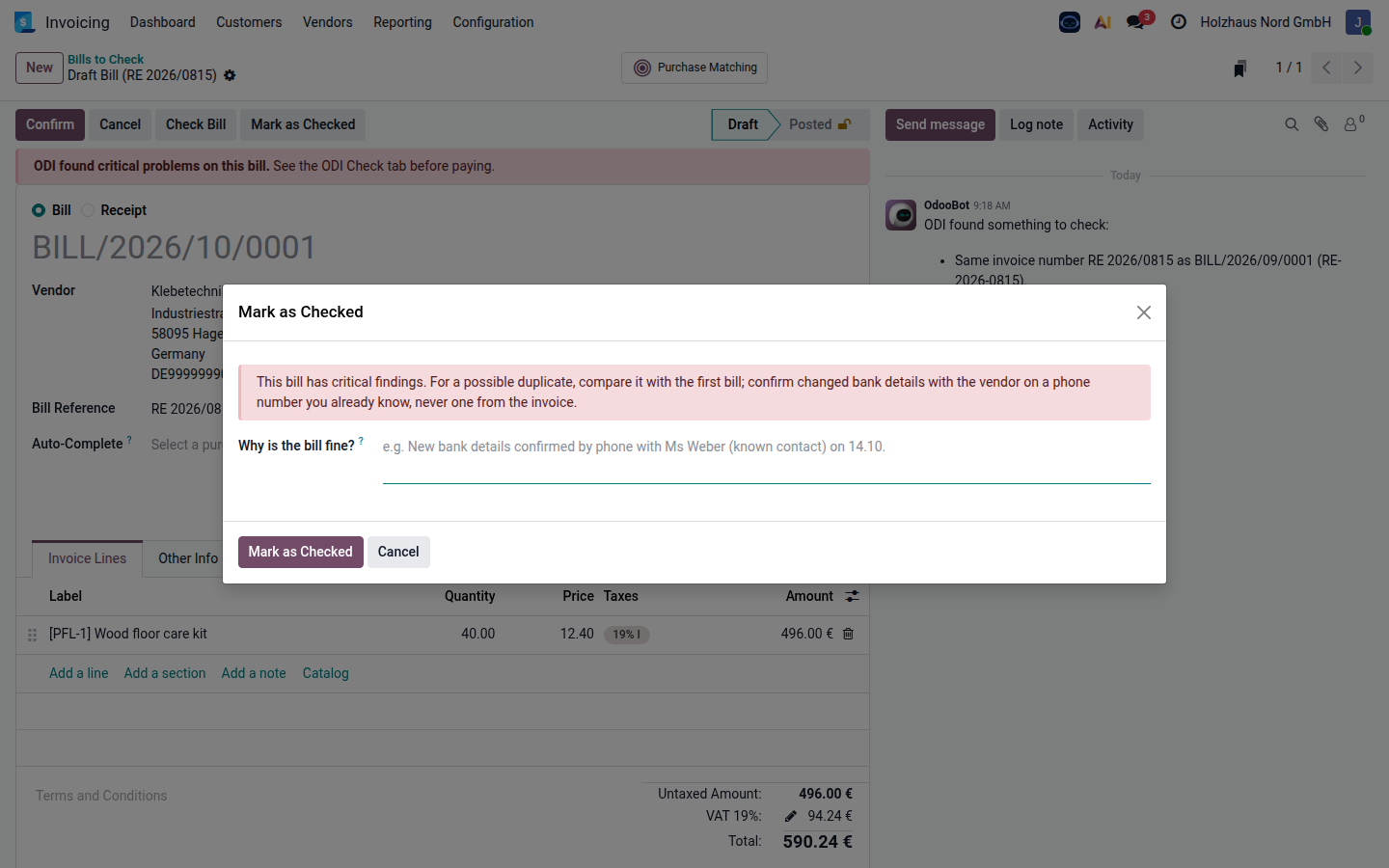
A person must give a reason, which is kept with the bill and posted in the chatter. Critical findings can only be accepted by users of the group May accept critical bill findings; optionally such bills cannot be posted until then.
Helpdesk assistant
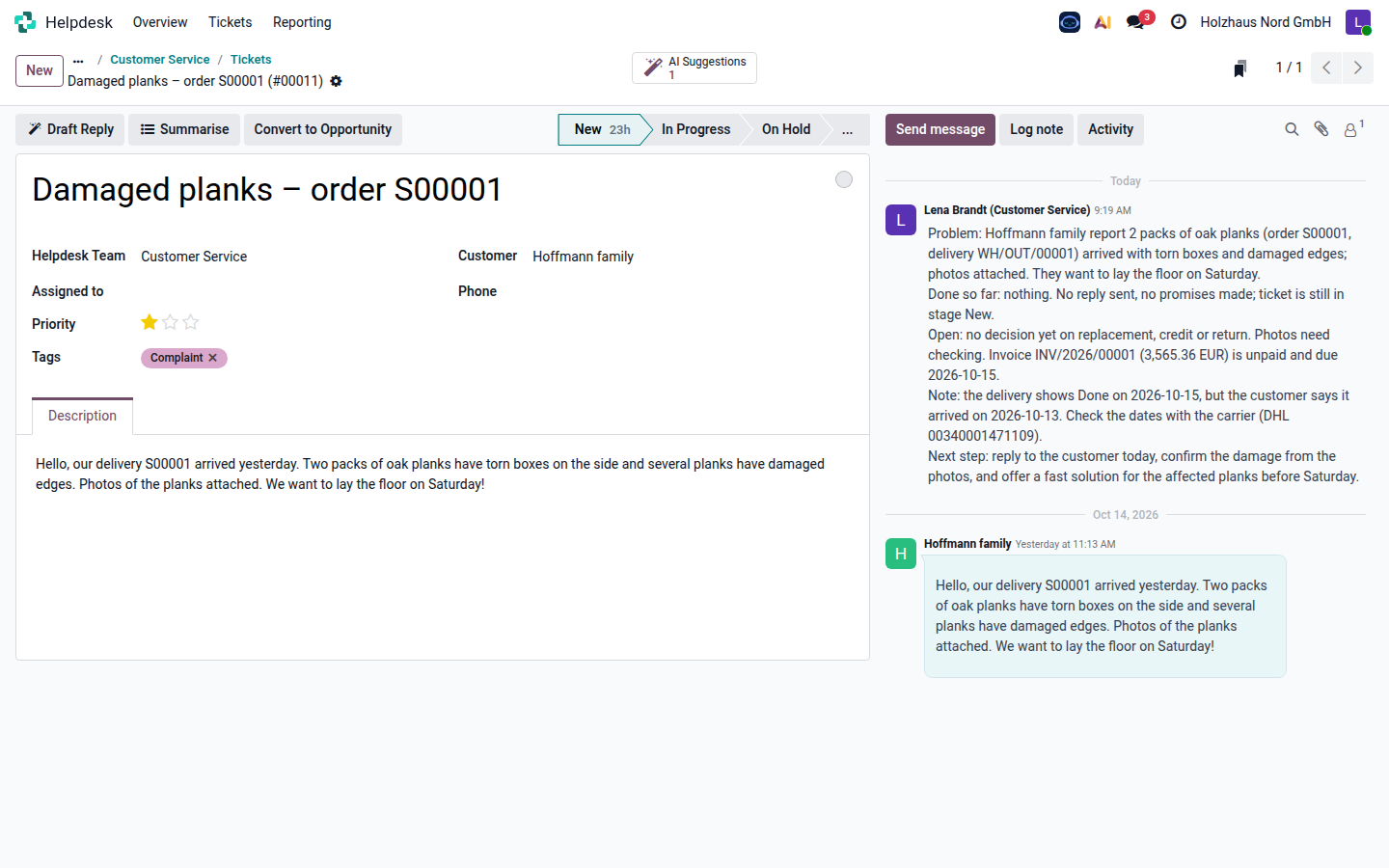
Draft Reply and Summarise on every ticket. The summary in the chatter states the problem, what was done or promised so far, the unpaid invoice, the delivery with its DHL number, what is open and the next step. The AI Suggestions button opens the drafted reply.
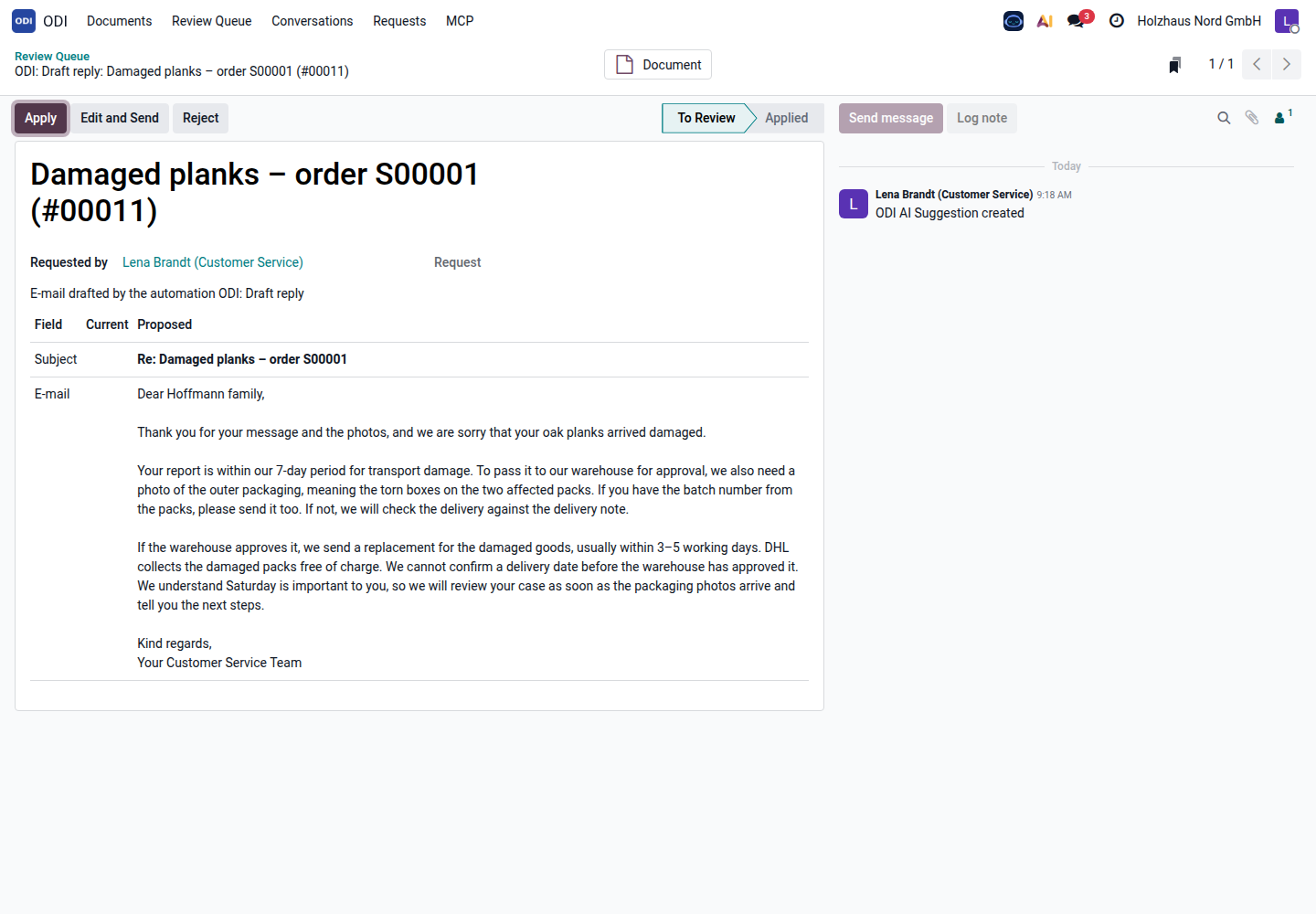
Written in the customer's language from the ticket, the order data and the company's complaint rules: it asks for a photo of the outer packaging and promises no replacement or date before the warehouse has checked. Edit and Send opens it in the e-mail editor.
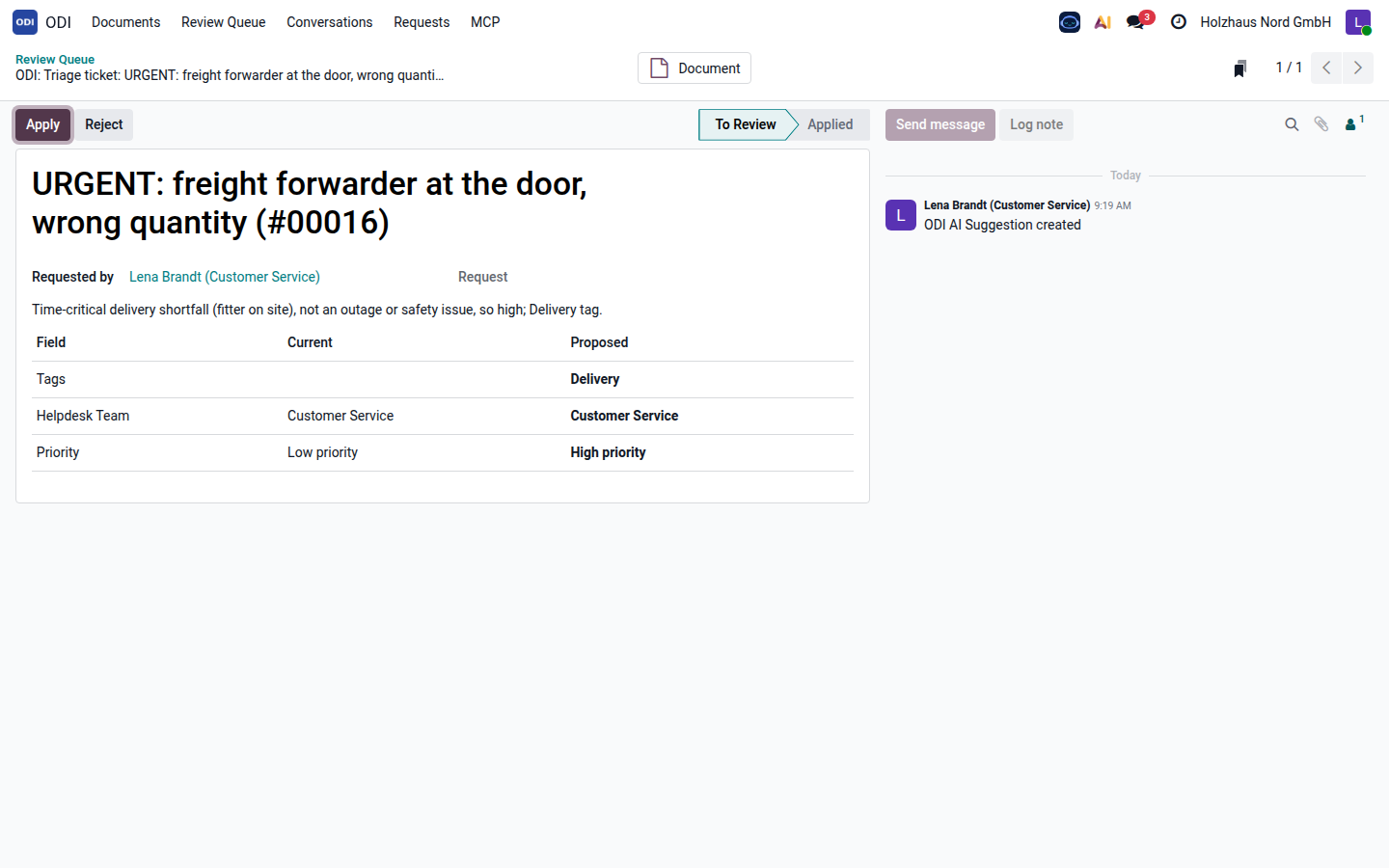
Proposed tag Delivery, the team and priority High, with the reason ("time-critical delivery shortfall, fitter on site"). The triage runs automatically on new tickets and waits for review by default.
Sales assistant
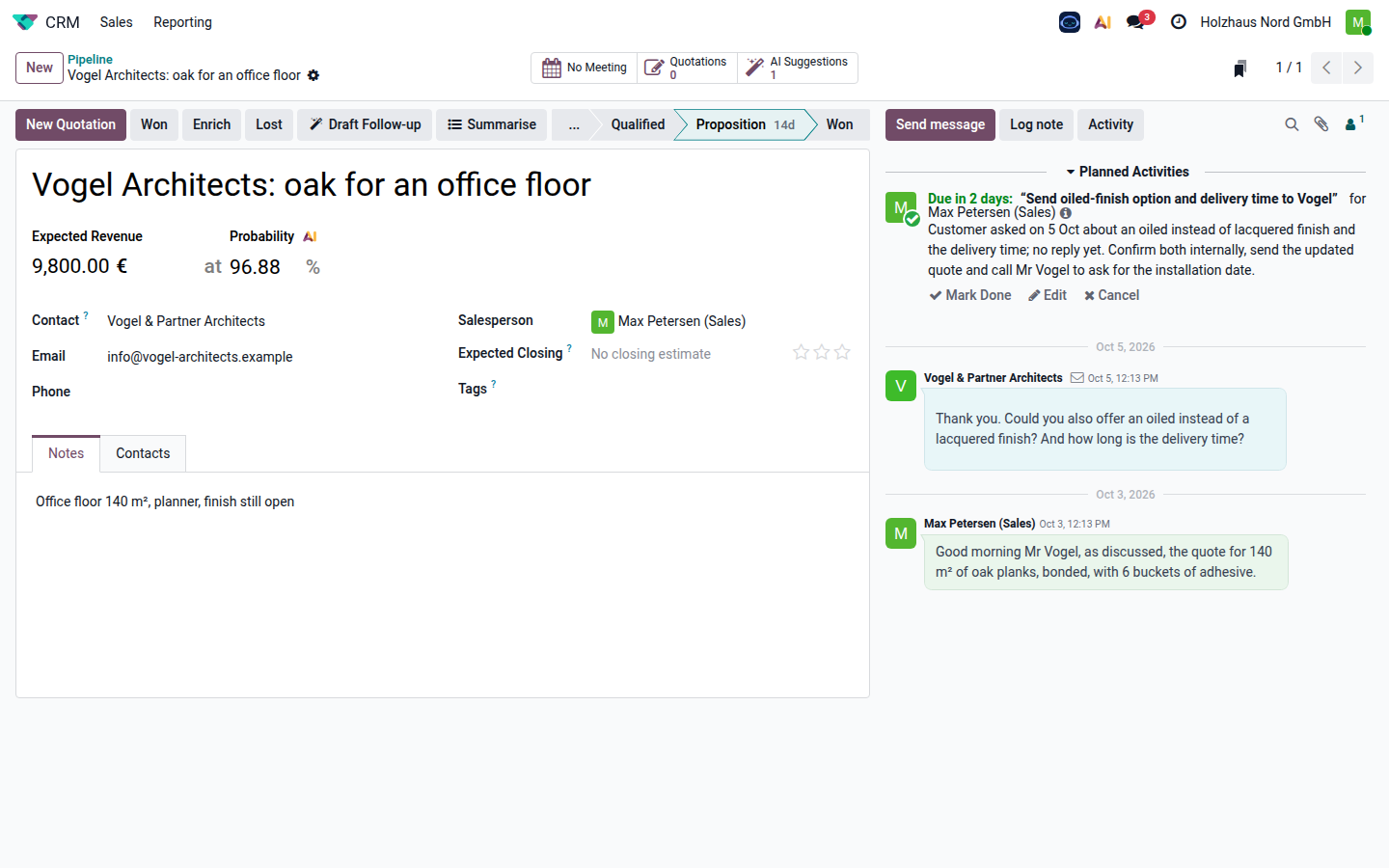
The daily follow-up found it (no next step, no contact for days) and planned a to-do for the salesperson: "send the oiled-finish option and delivery time to Vogel", with the reason.
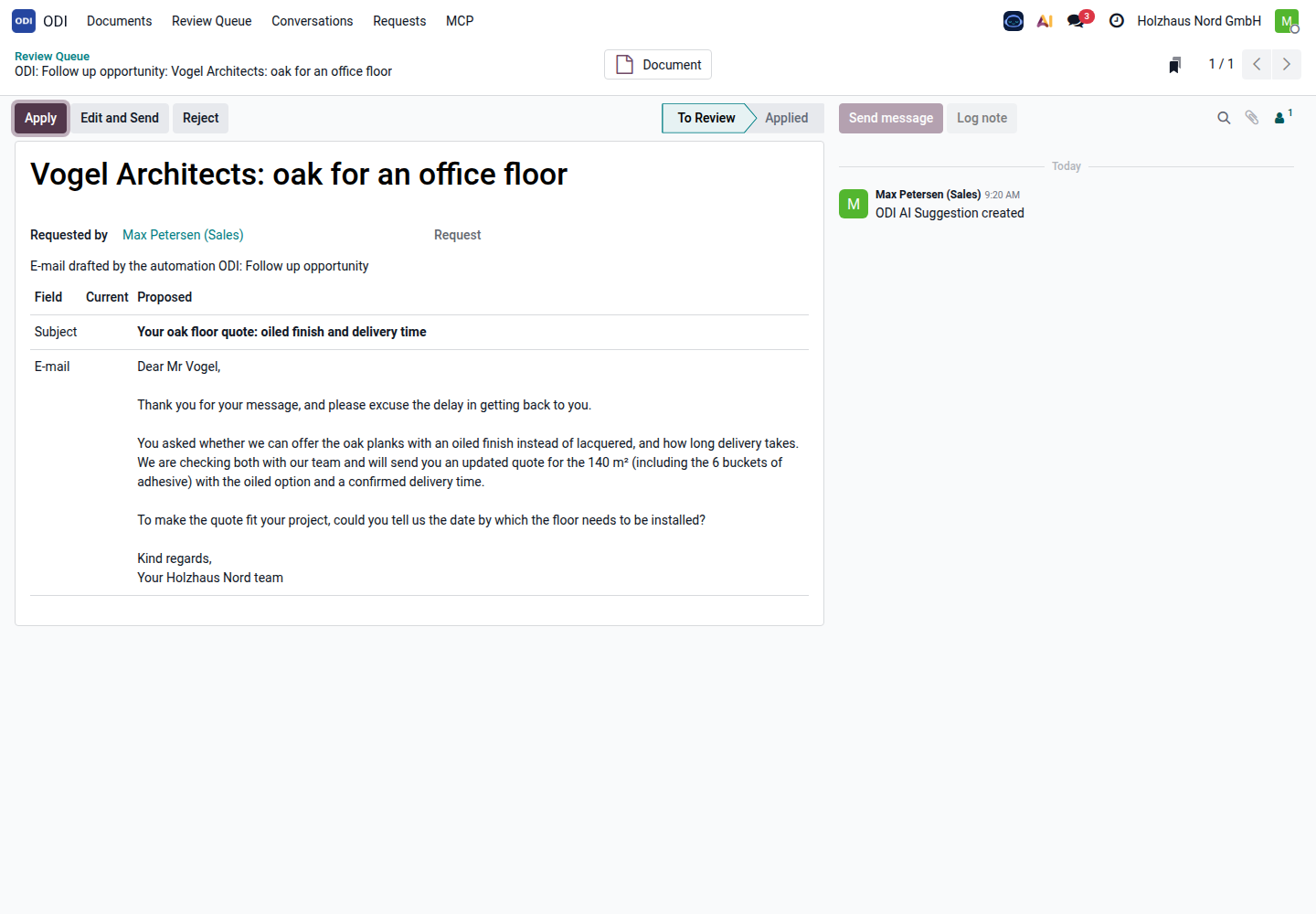
It picks up what the customer asked (oiled instead of lacquered, delivery time), apologises for the late answer and asks one concrete question: by when the floor must be installed. The salesperson sends it.
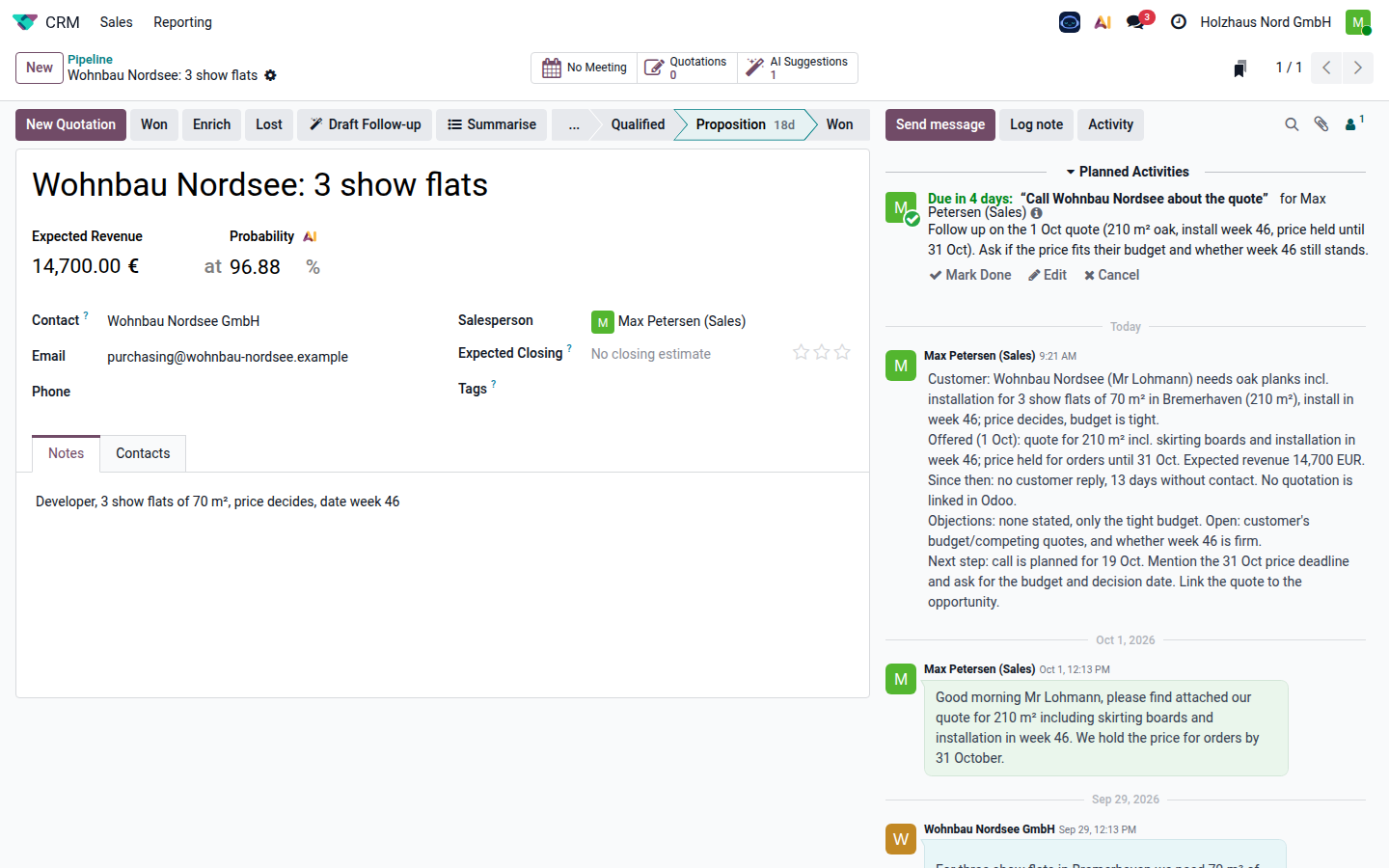
What the customer wants, what was offered, the price deadline, the silence since the offer, what is open and the next step – as an internal note for the salesperson.
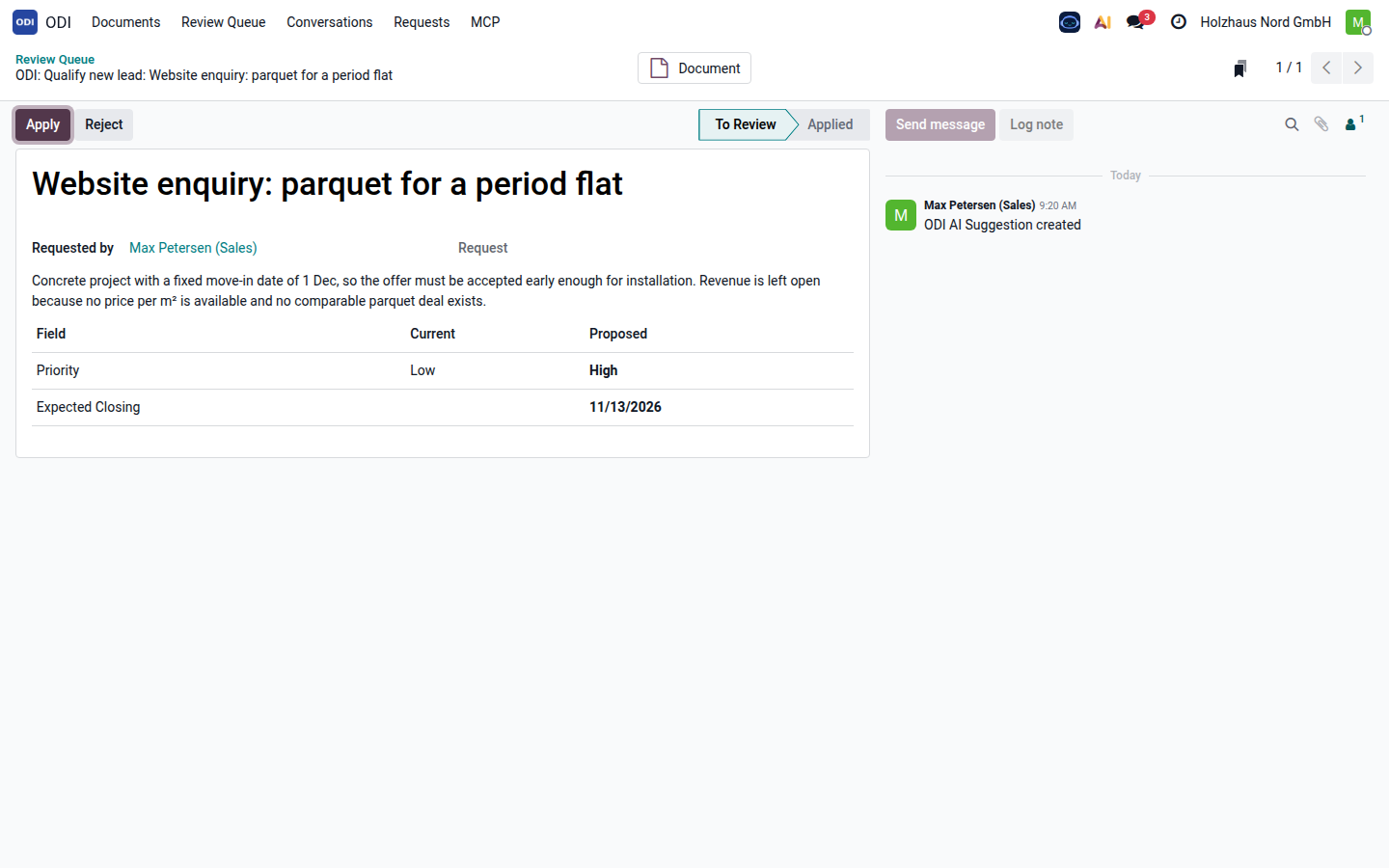
Priority High and an expected closing date before the customer's move-in date, each with the reasoning. Expected revenue was left empty: there was no comparable parquet deal to estimate from, and ODI says so instead of guessing.
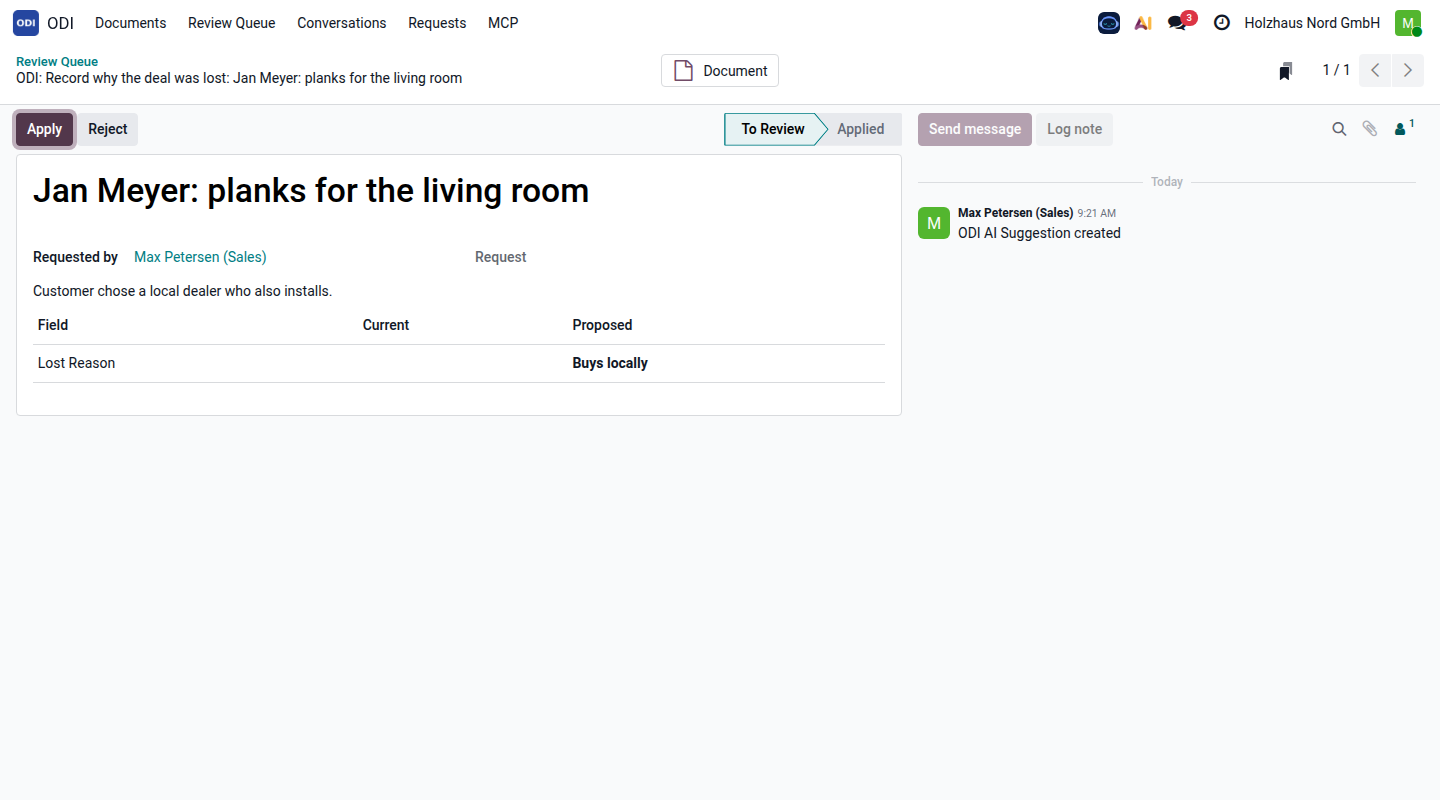
ODI read the conversation ("we have decided on a dealer in our town who also does the installation") and proposes the lost reason Buys locally, so loss reports get real data.
Manufacturing assistant
The company's workshop builds tables and benches to order. Every hour ODI checks each open production order by rules – no AI, no cost: components that are missing or arrive after the planned start, a start date that has passed, overloaded work centers and the deadline. It names the concrete cause and computes when the order can realistically be ready.
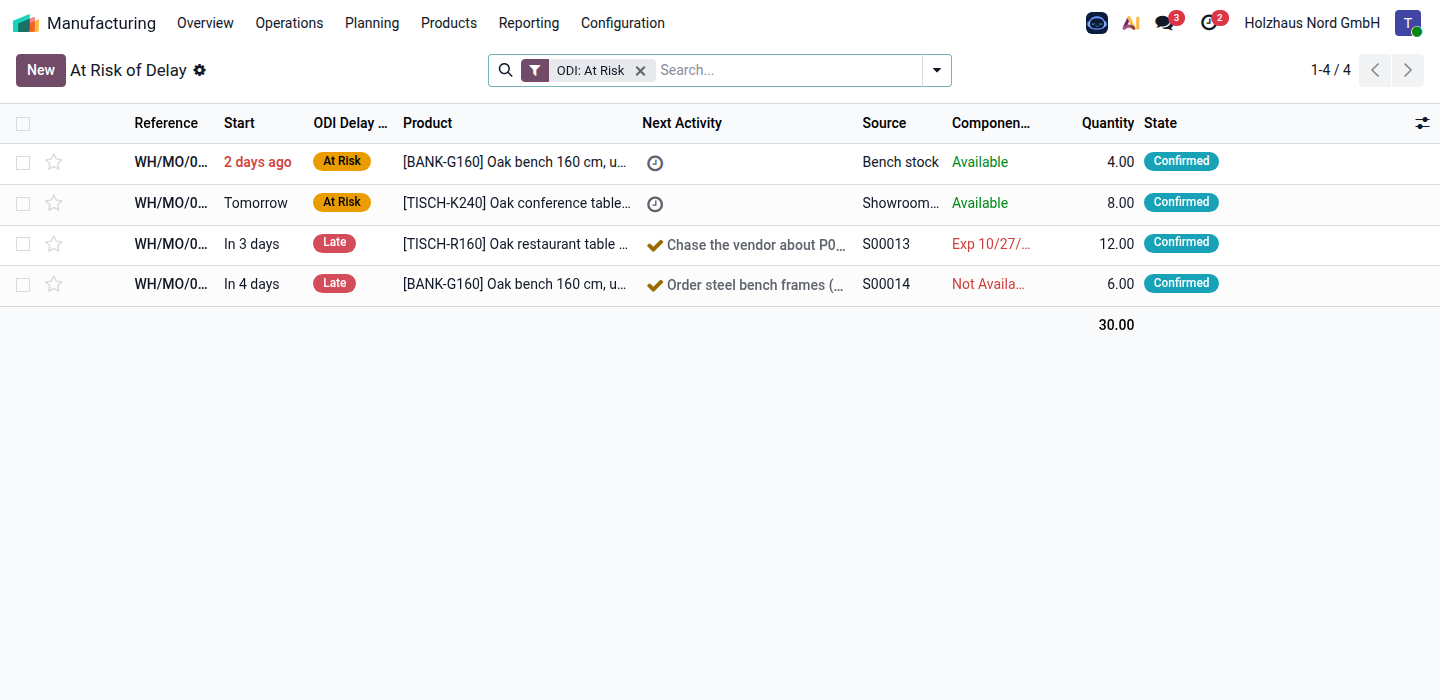
Four of five open orders need attention: two will miss their deadline (red), two are at risk (yellow). The column Next Activity shows the next steps ODI planned for the workshop manager.
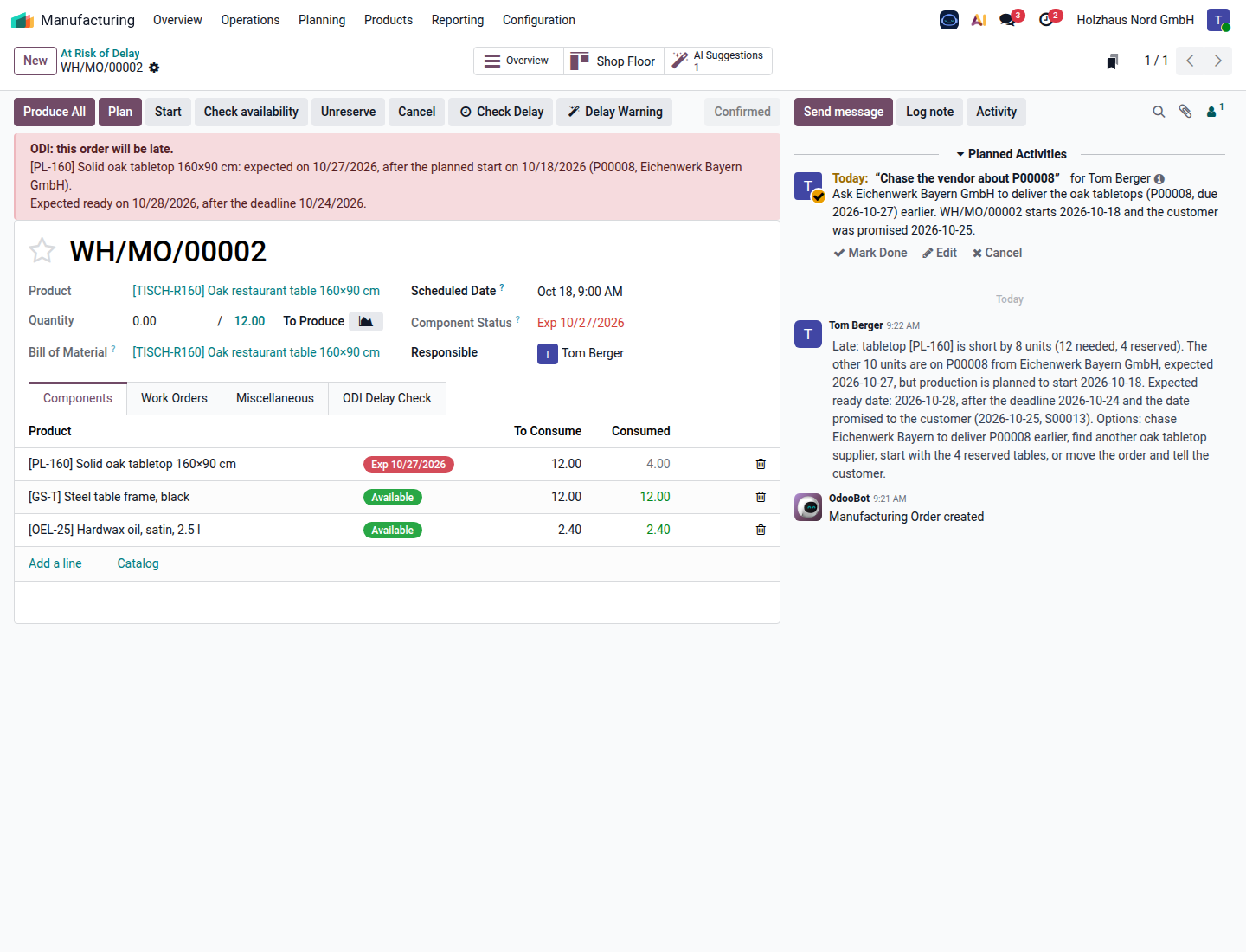
The red banner gives the cause: 8 of the 12 tabletops arrive only on 10/27 with P00008 from Eichenwerk Bayern, after the planned start – so the order will be ready on 10/28, after the deadline. Delay Warning let the AI write the note on the right: the cause, the date promised to the customer (10/25) and what could help; it also planned "chase the vendor about P00008" for Tom.
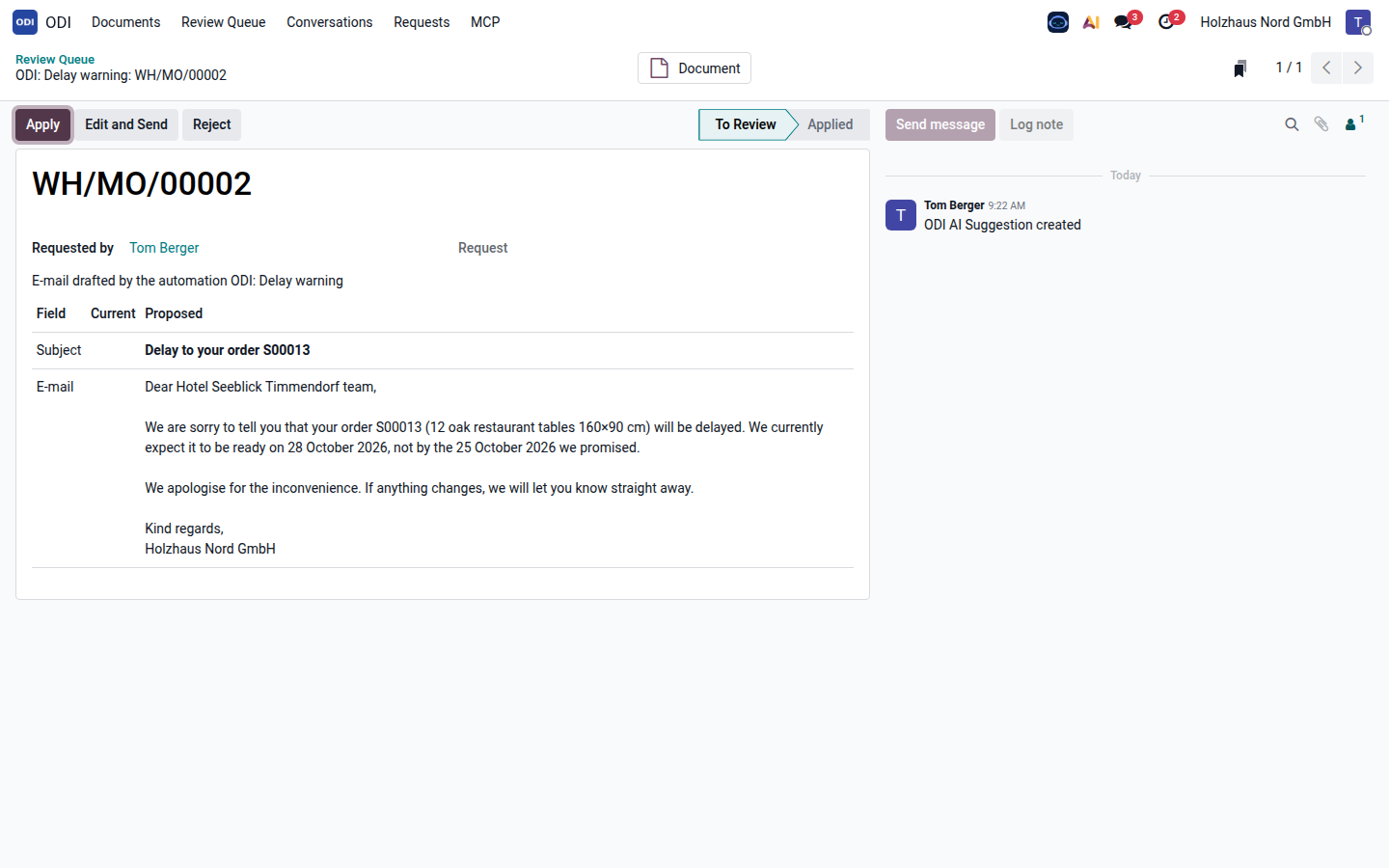
The hotel was promised the 25th, so ODI drafted a short apology with the realistic date from the check – not an earlier one, and without internal details such as the vendor. It waits in the review queue; Edit and Send opens it in the e-mail editor.
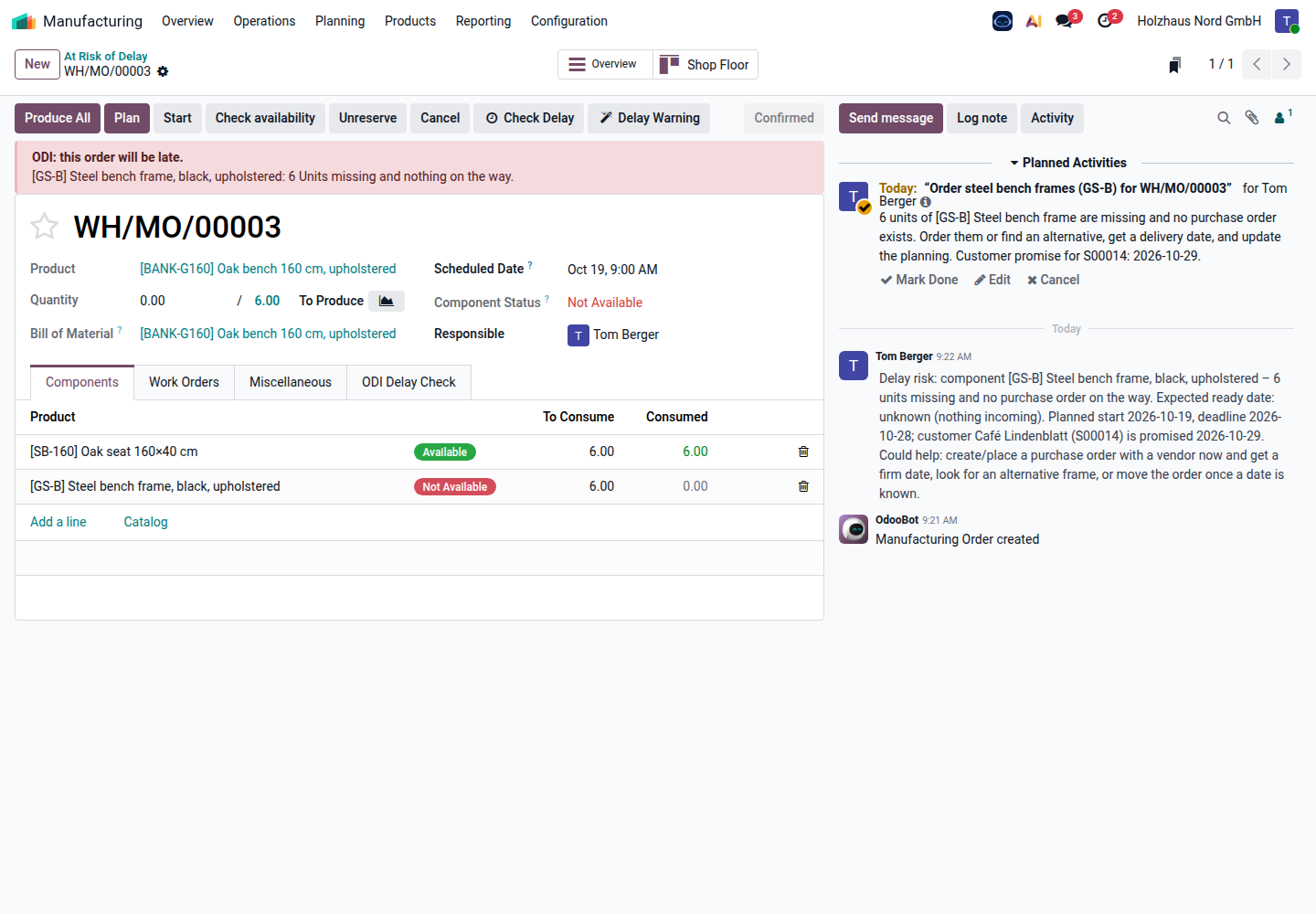
The bench frames are not in stock and nothing is ordered: no ready date can be given. ODI's note says so and planned "order the steel bench frames" for the workshop manager.
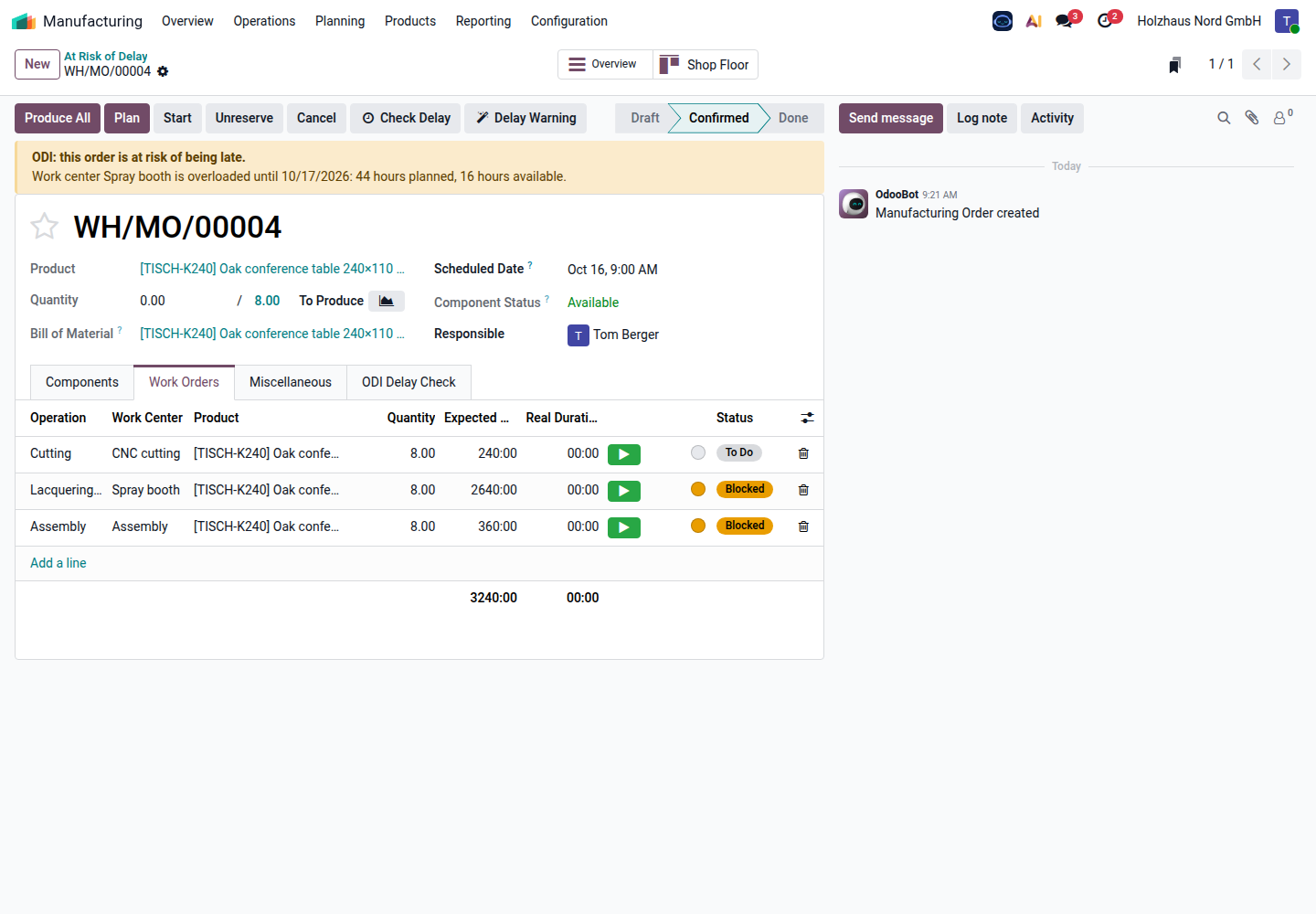
All components are there, but three coats of lacquer on 8 tables take 44 hours in the spray booth, and its working calendar has 16 hours until the planned end.
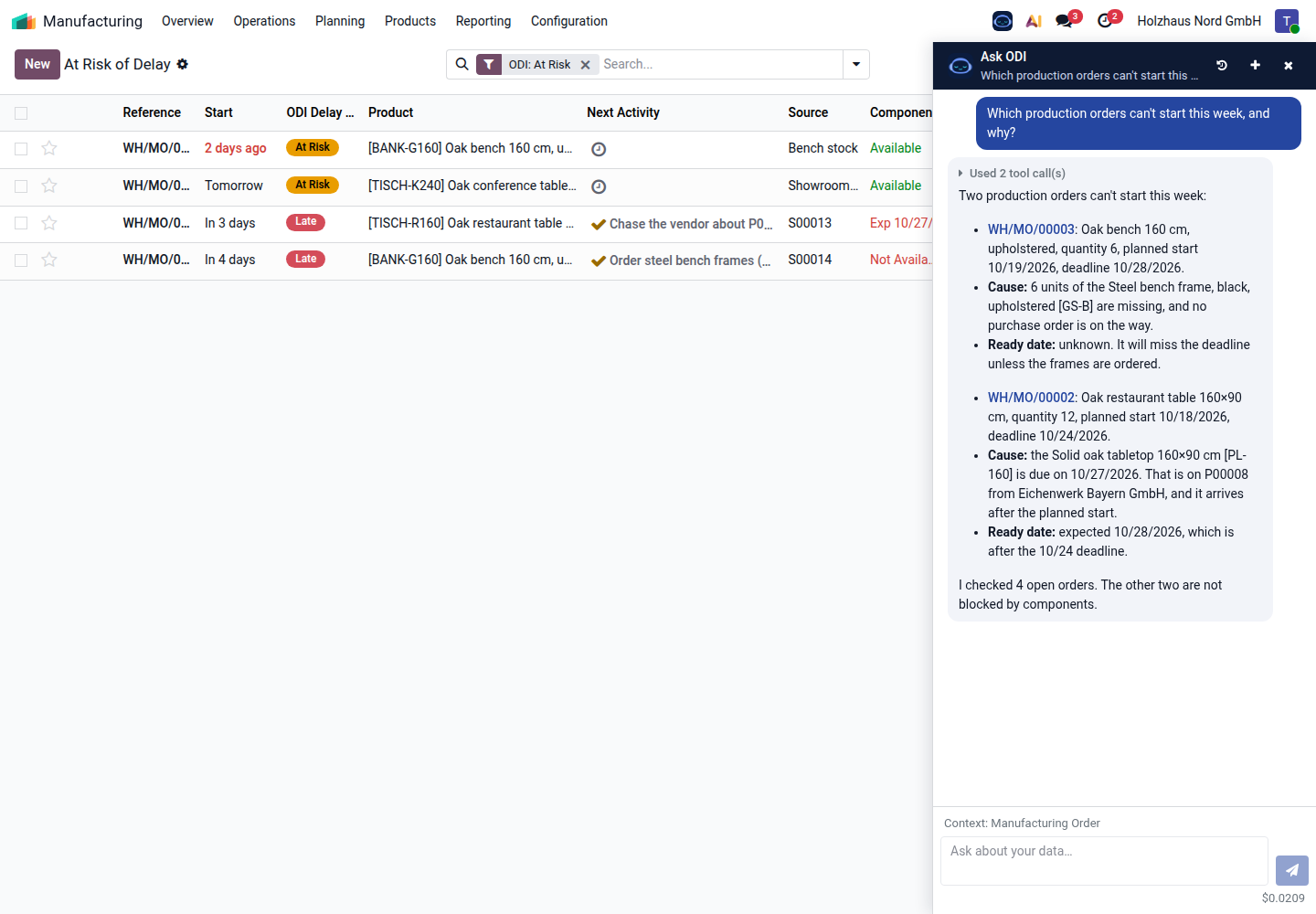
Ask ODI lists the two blocked orders with the missing component, the purchase order and its date, the expected ready date – and that the other open orders are not blocked by components.
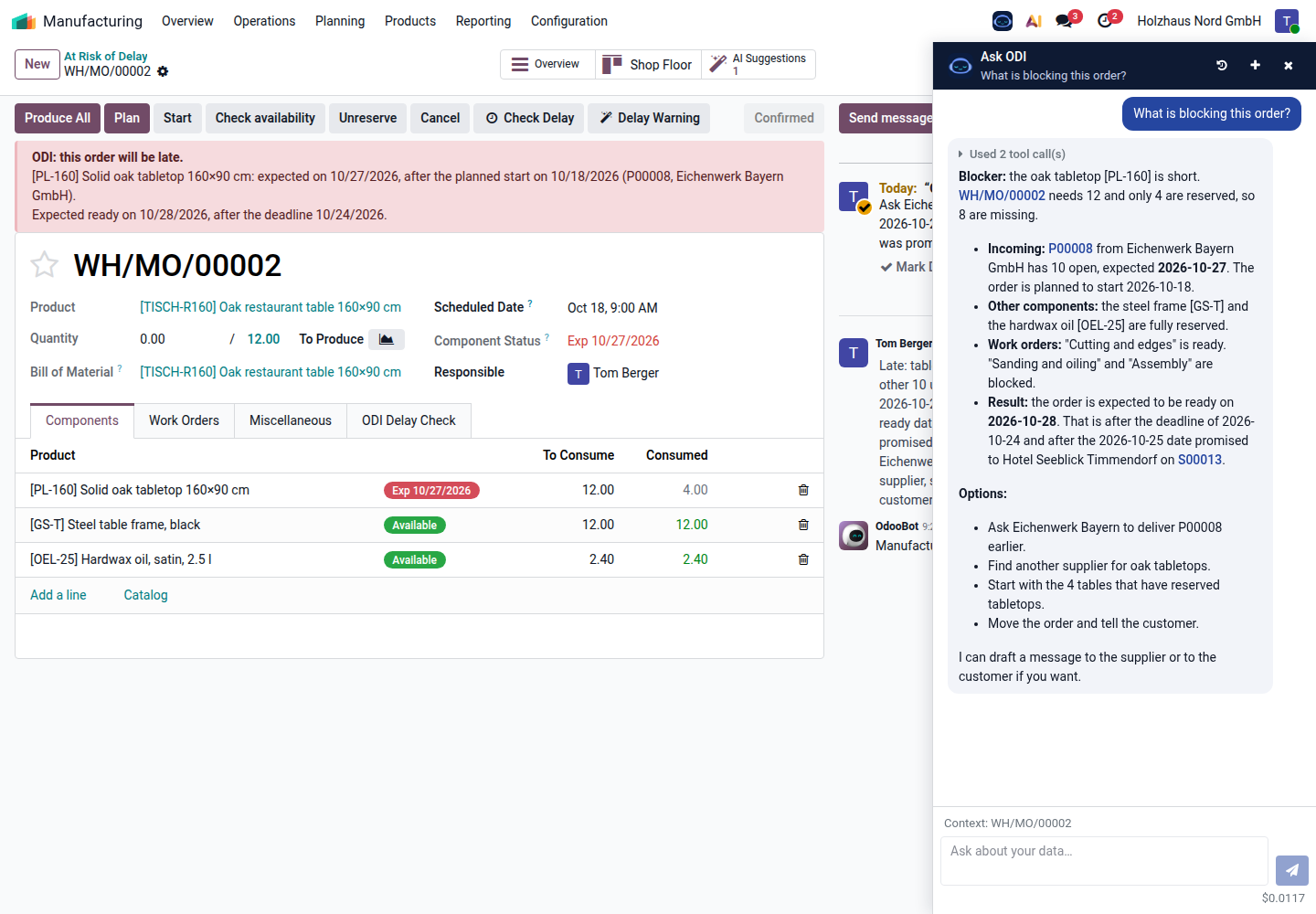
Components, the open purchase order, which work orders are ready or blocked, the expected ready date against the deadline and the date promised to the customer, and the options.
Review queue
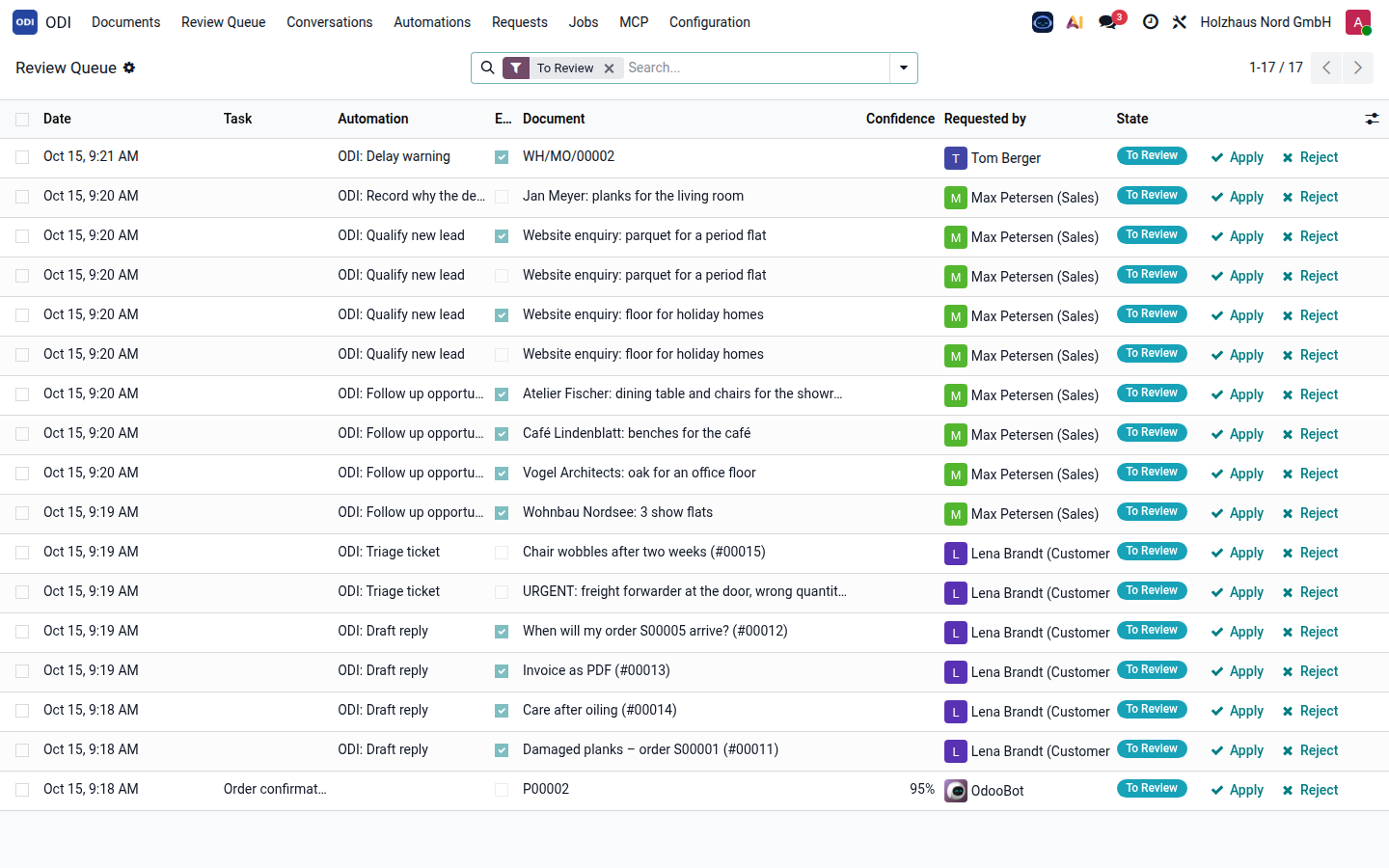
Each entry shows the automation that proposed it, whether it is an e-mail draft, the document and who it is for. Apply or Reject right in the list.
AI automations
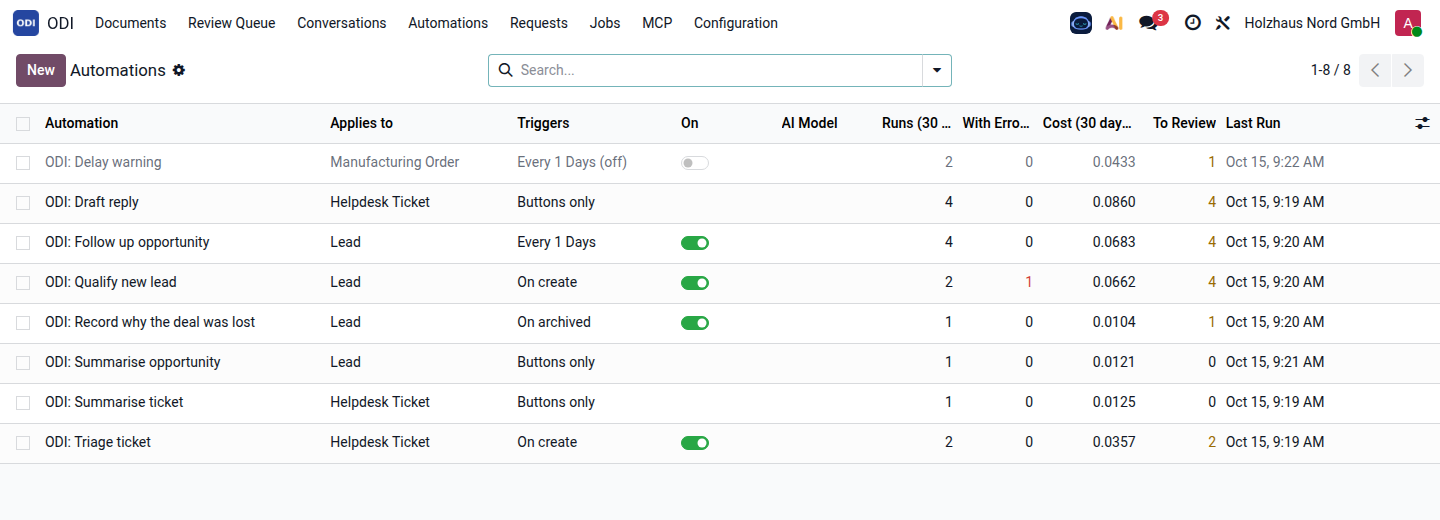
What triggers each one (on create, on archive, daily, buttons only), an on/off switch, runs, errors, cost and open items for the last 30 days.
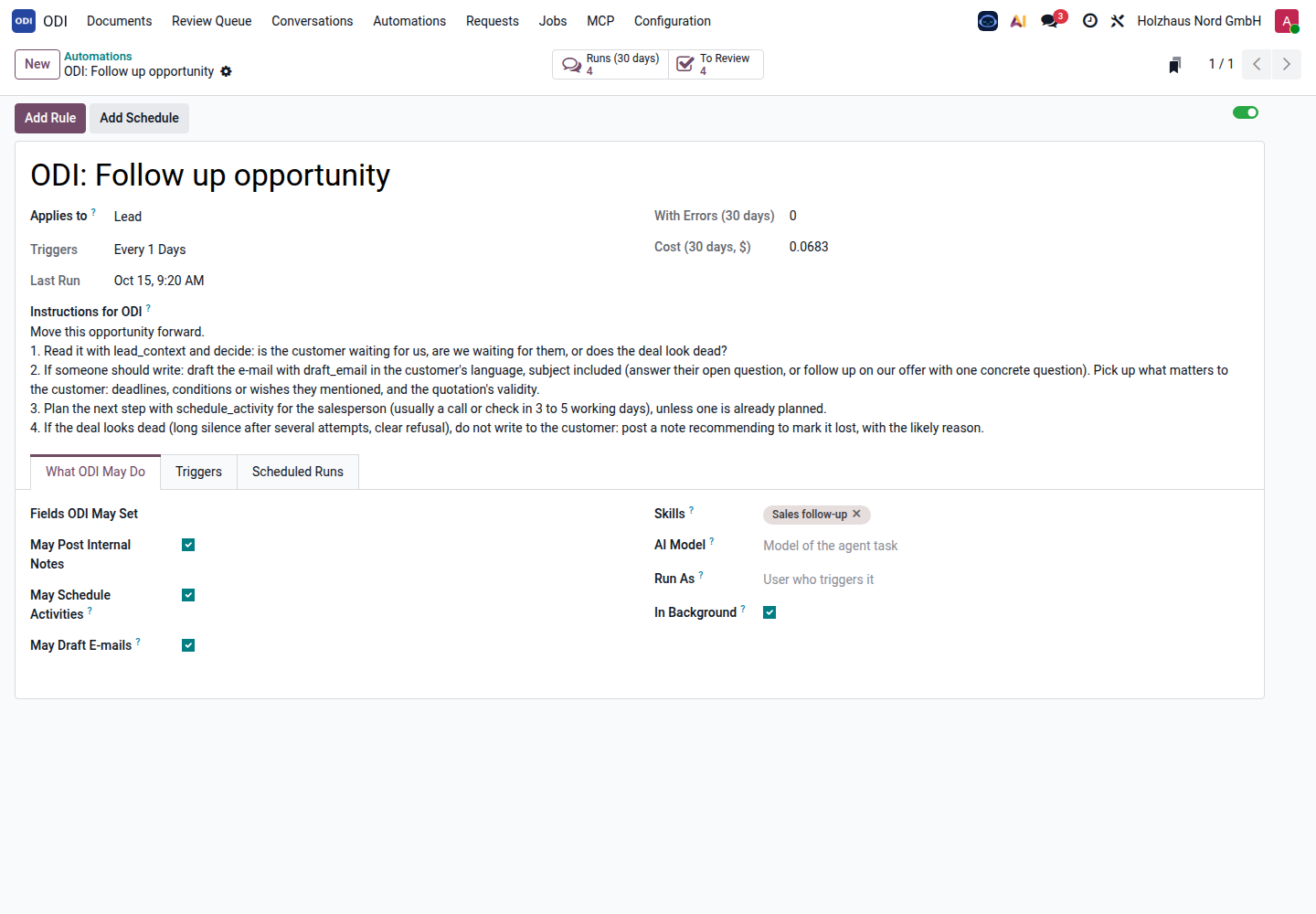
Plain-language instructions, what ODI may do (fields, notes, activities, e-mail drafts), the skills it uses, its own AI model if wanted, and the user it runs as.
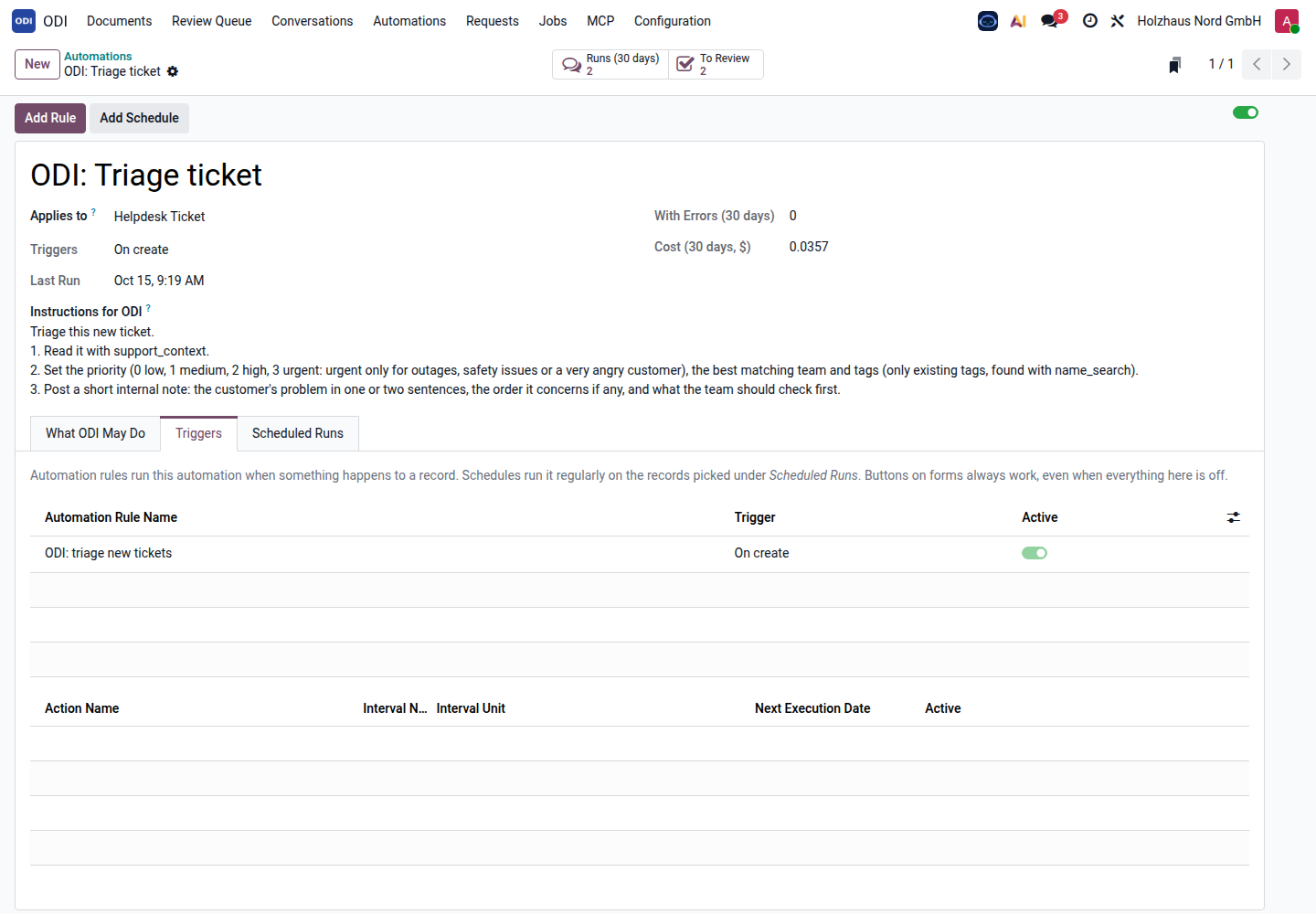
The automation rule that runs the triage when a ticket is created. Add Rule adds another rule (on change, on incoming message …), Add Schedule a schedule.
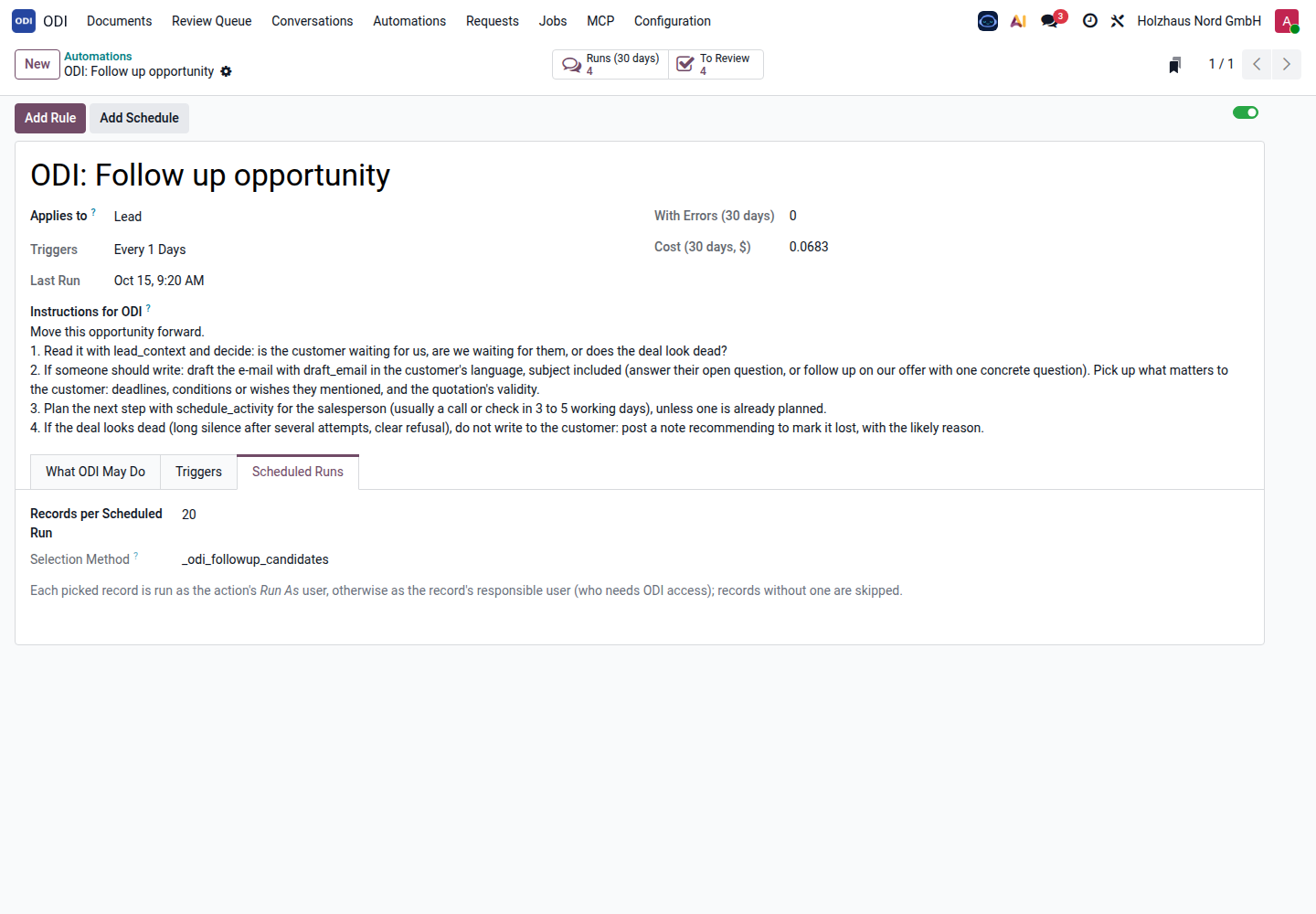
Which records a schedule picks – here the module's selection of quiet opportunities – and how many per run. Each record runs as its responsible person, with that person's rights.
Outside services
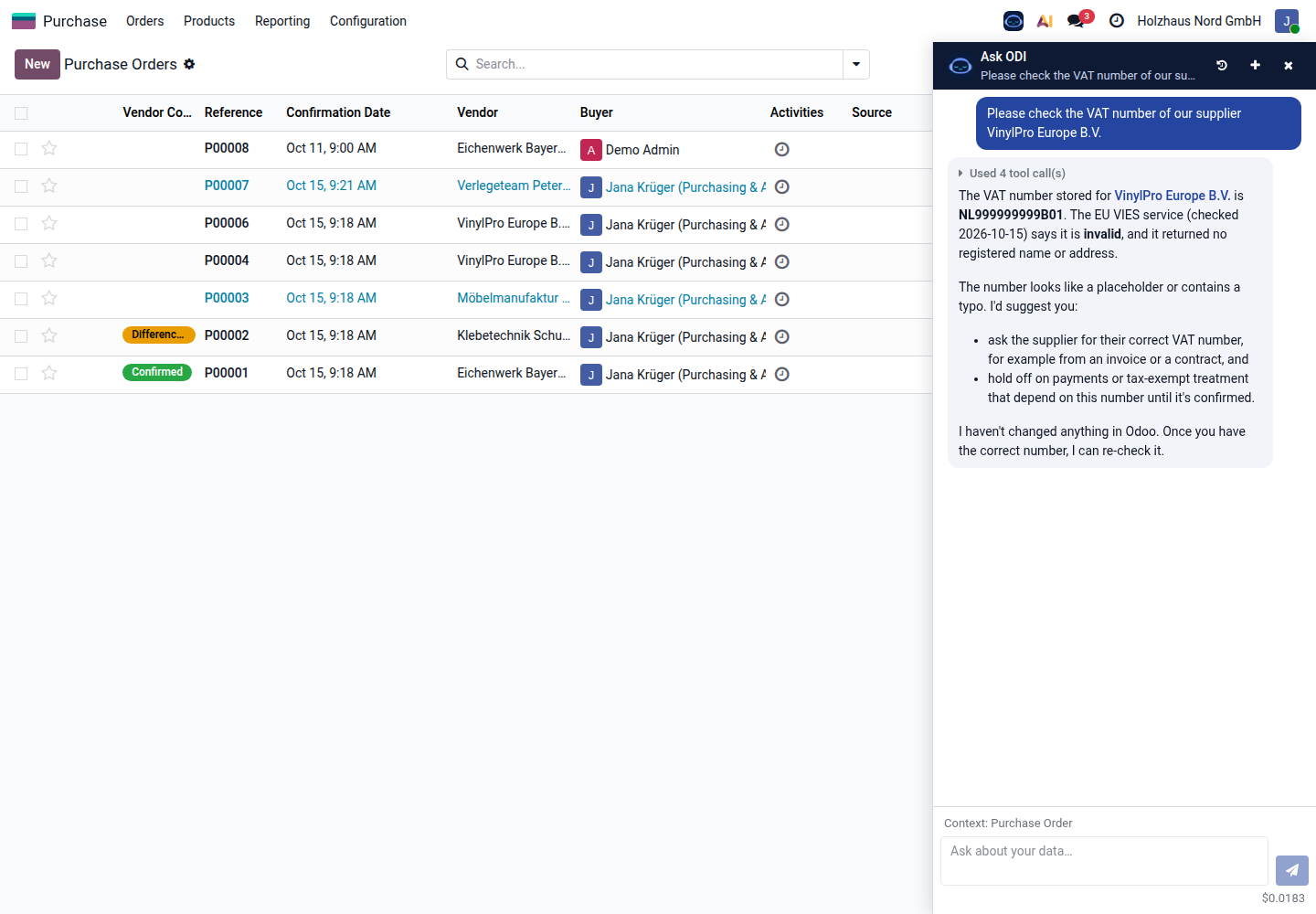
The AI called the EU Commission's VIES service and reports that the (made-up) number is invalid, with what to do next – and that it changed nothing. Administrators allow such services one by one; keys stay on the server.
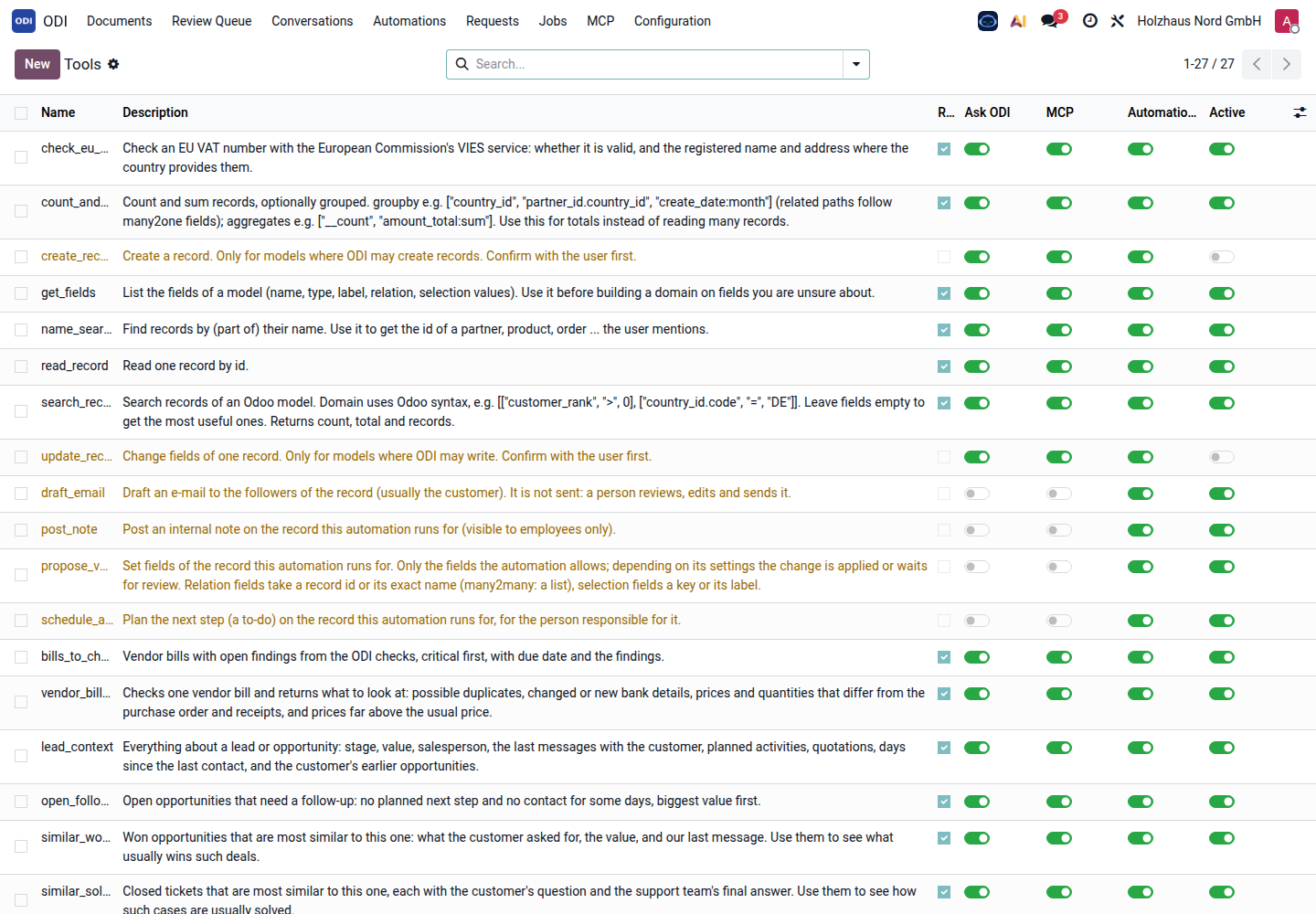
All tools the AI may use, and where: in Ask ODI, through MCP and in automations. Built-in tools read and search records; feature modules add their own (support context, similar tickets, bill checks …); HTTPS tools connect outside services such as the VAT check.
Claude connection (MCP)
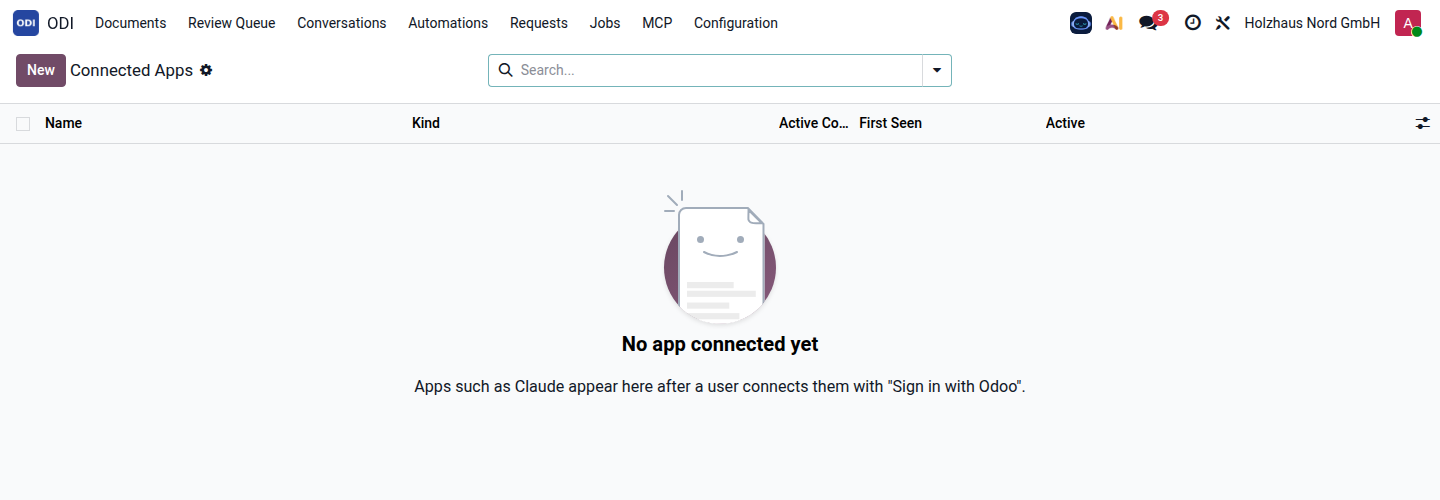
Users can connect Claude Desktop, claude.ai or the Claude app to Odoo. They sign in with their Odoo account ("Sign in with Odoo"); the connected apps appear here and can be revoked, and every request is logged. No app is connected in the demo.
Control and costs
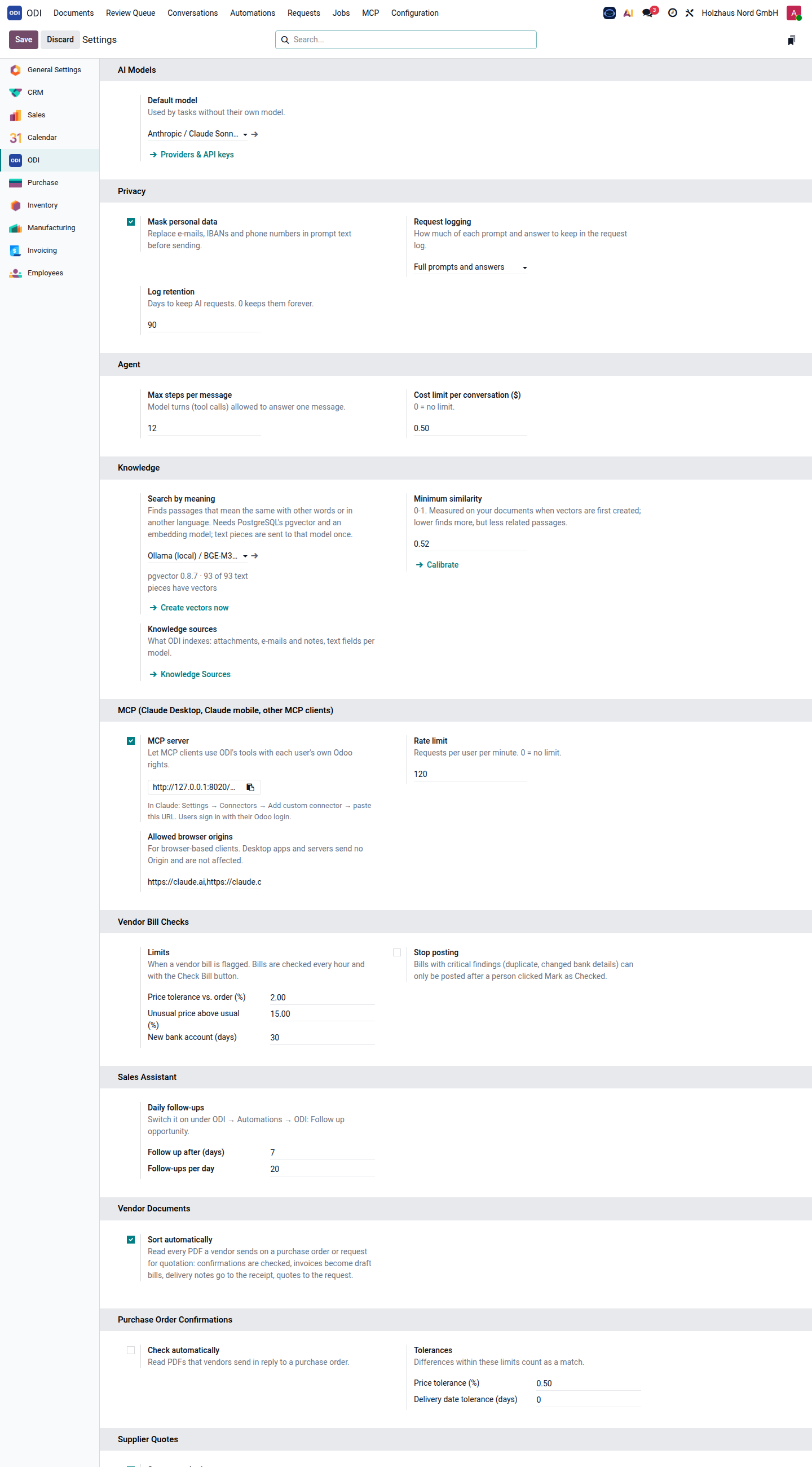
The default AI model, privacy (masking e-mail addresses, IBANs and phone numbers before sending; how much is logged; how long), limits for the agent (steps and cost per conversation), search by meaning with its similarity threshold, the MCP address for Claude, and the settings of each add-on.
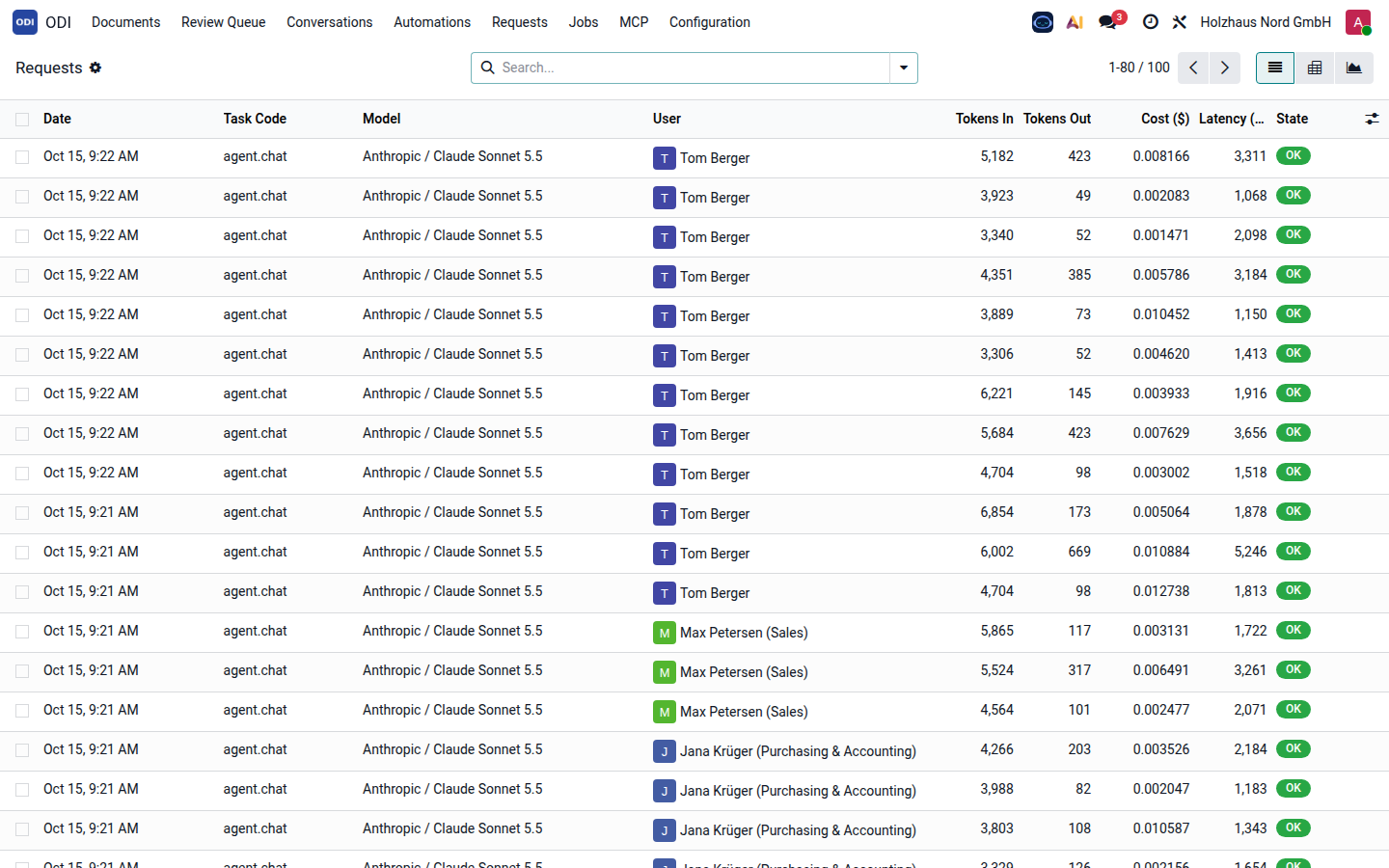
User, model, tokens, cost and duration of each call. One helpdesk reply costs about one to two cents with Claude Sonnet; the vector search runs locally at no cost.
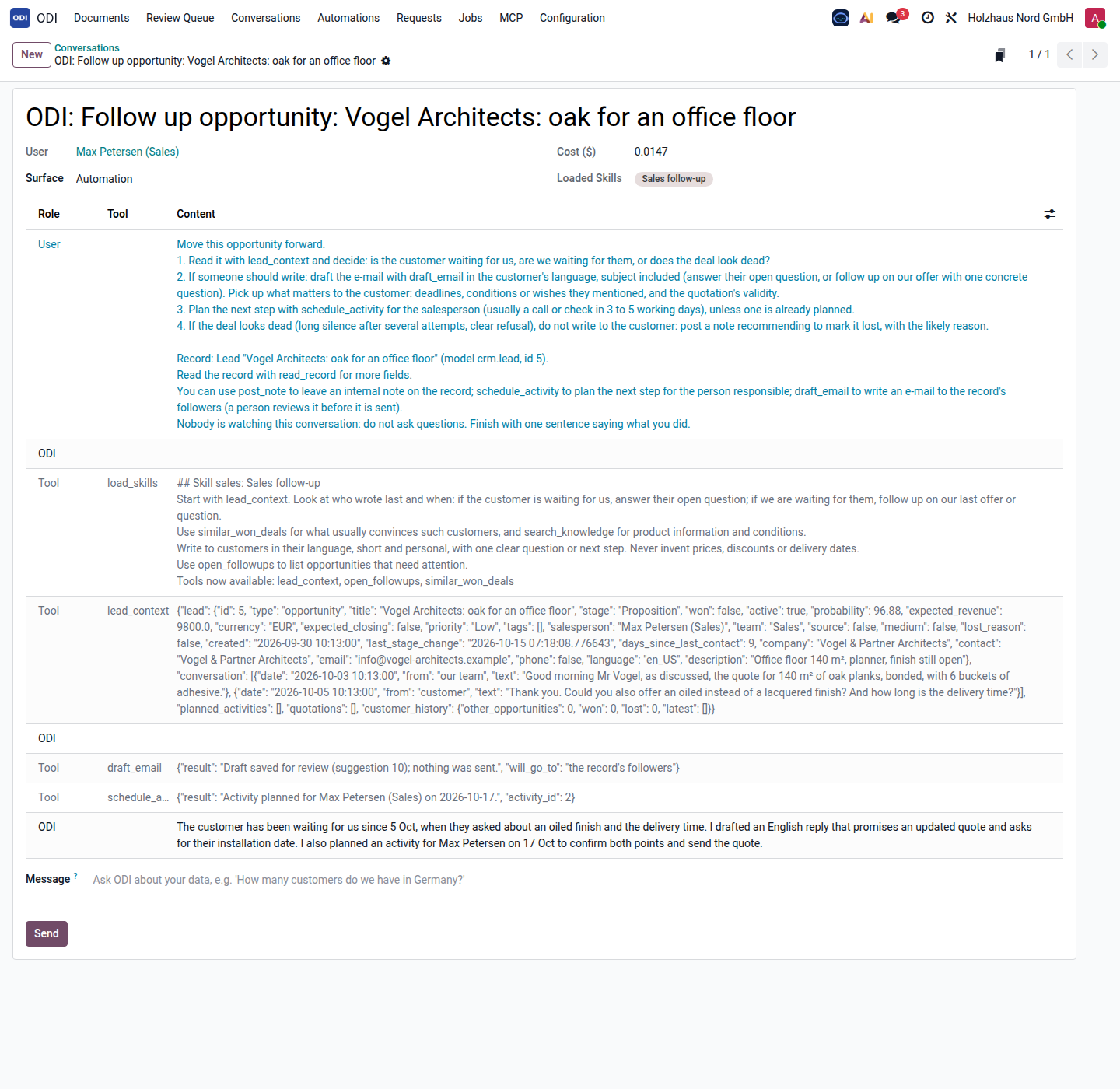
The instructions, each tool the AI called with the data it got back, and its final note – what it decided and why. Every run can be read afterwards; this one cost $0.015.
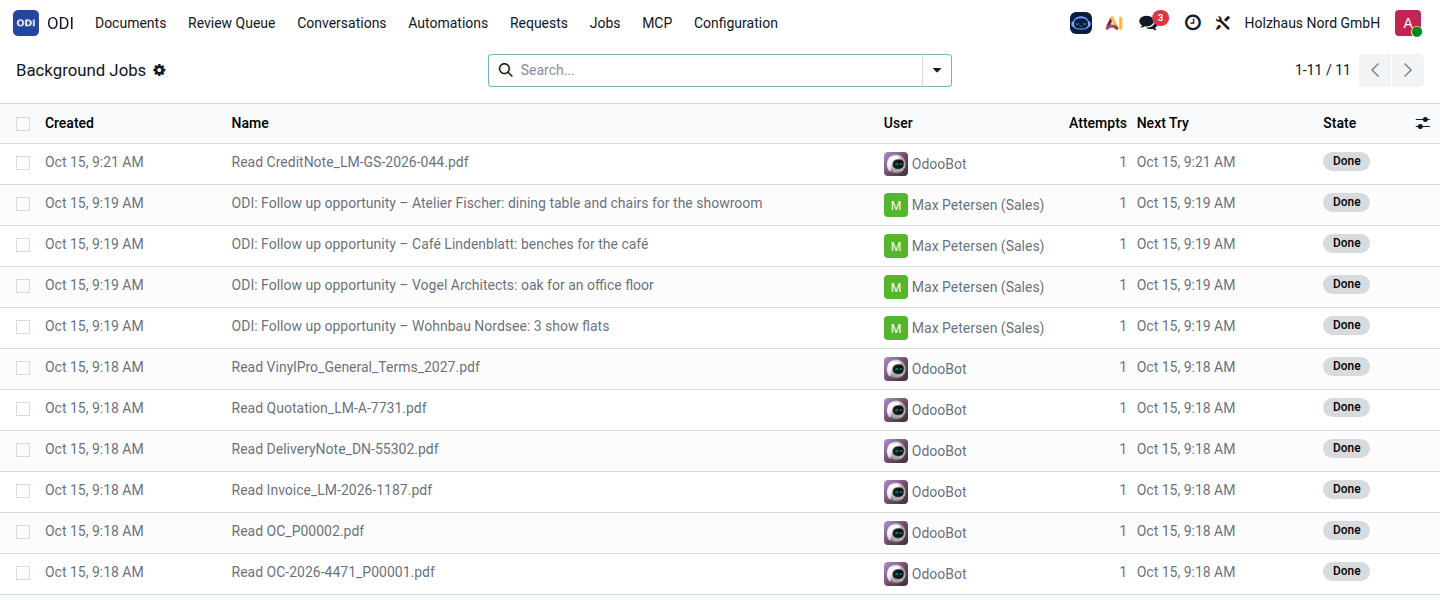
Vendor PDFs and automations run in the background with retries, so nobody waits.
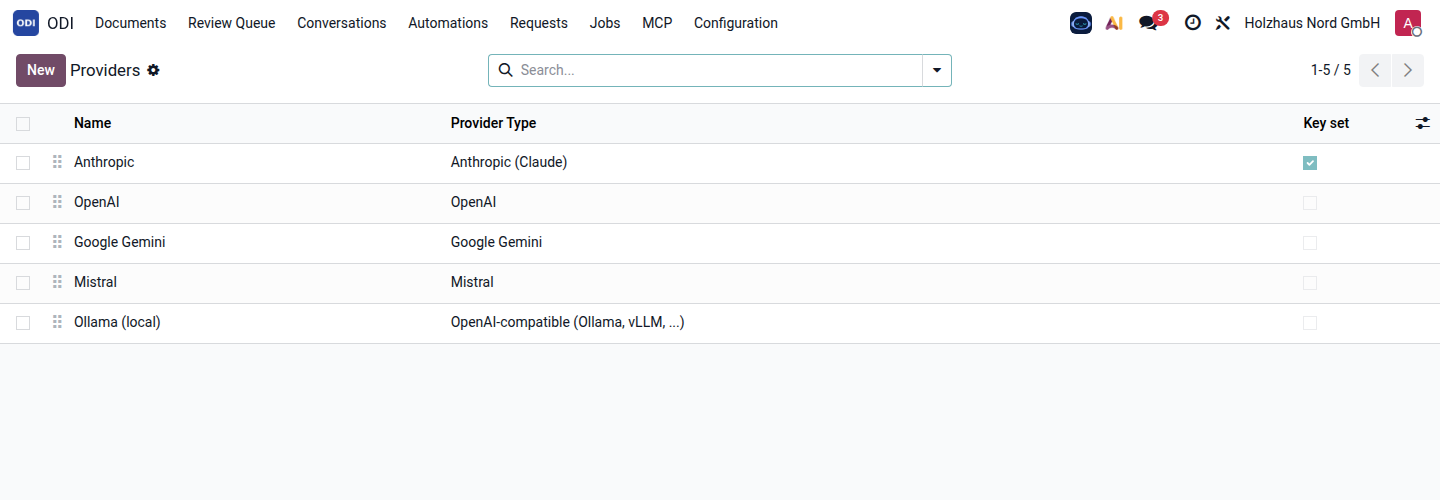
Anthropic, OpenAI, Google Gemini, Mistral and local models (Ollama and other OpenAI-compatible servers). Each task and each automation can use its own model.
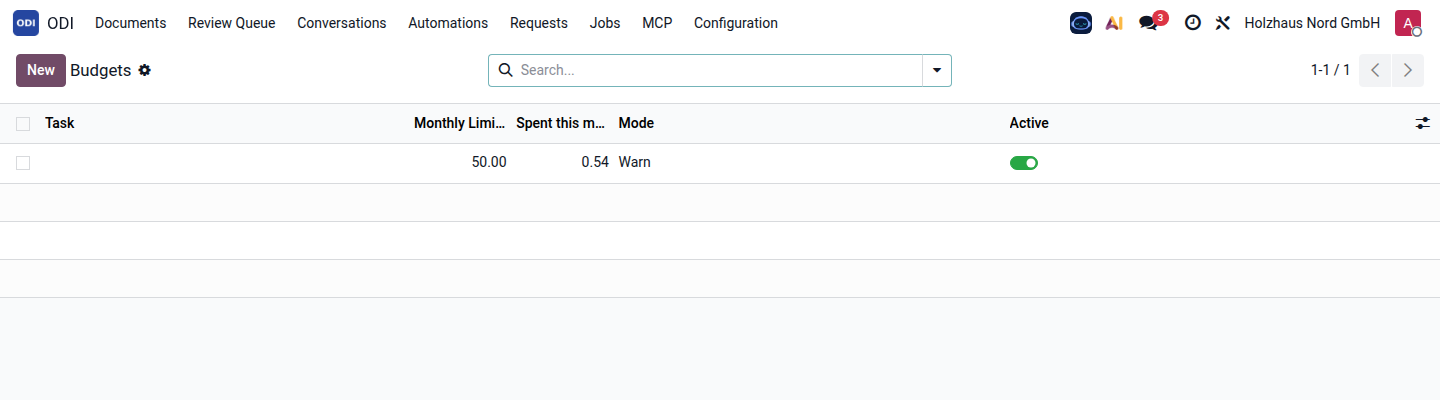
$50 a month for all AI tasks of the company, $0.54 spent so far, set to warn. A budget can also be set per task and set to stop the AI when it is reached.
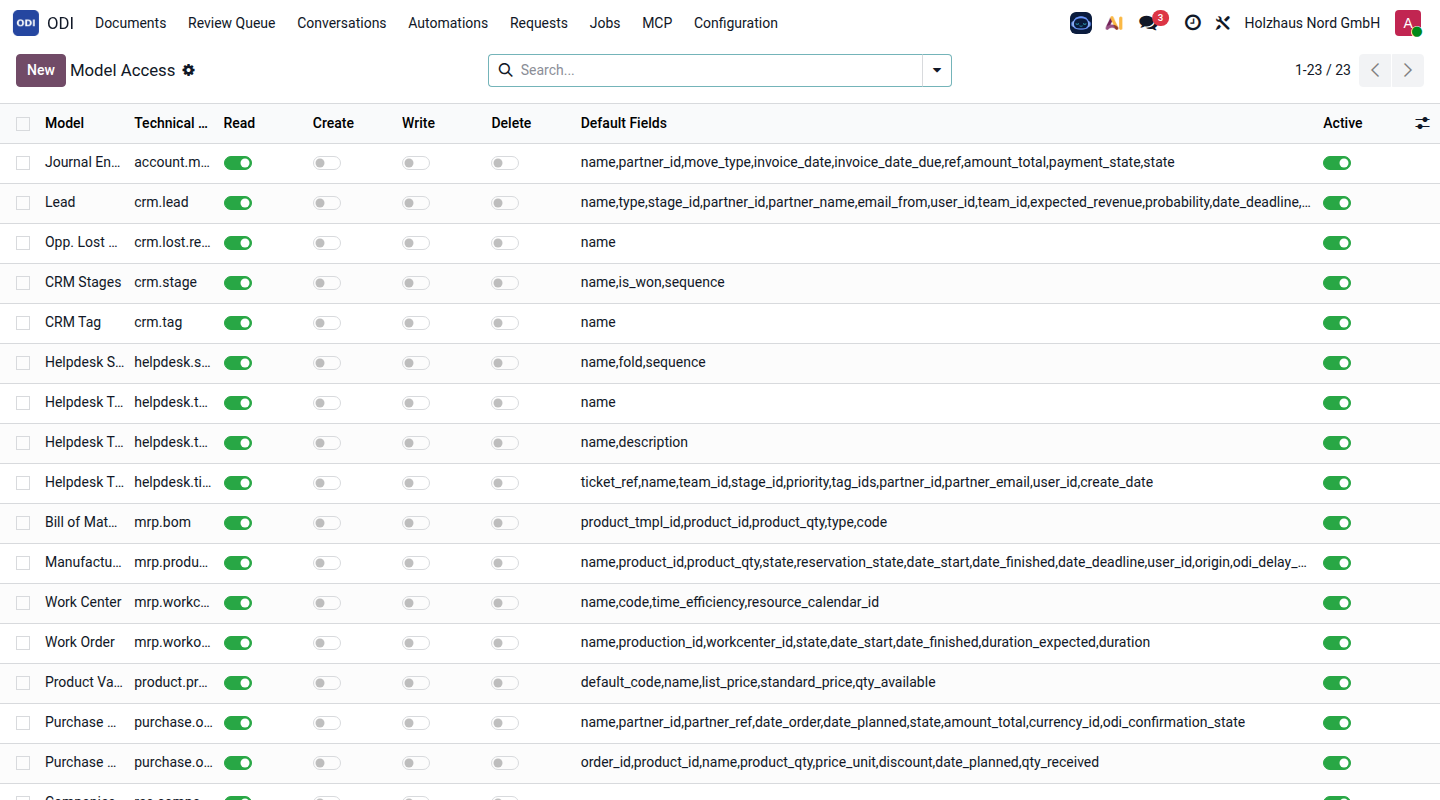
The administrator chooses per area whether the AI may read, create, change or delete, and which fields it sees by default. Reading always happens with the user's own Odoo rights.
Notes
- The demo ran on Claude Sonnet: all AI work in it – reading 7 vendor PDFs, 17 automation runs and 8 questions – took about 4 minutes and cost $0.54 in total. A local model (Qwen 3 30B on an 8 GB GPU) did 18 of these tasks in about 35 minutes, at no cost per call.
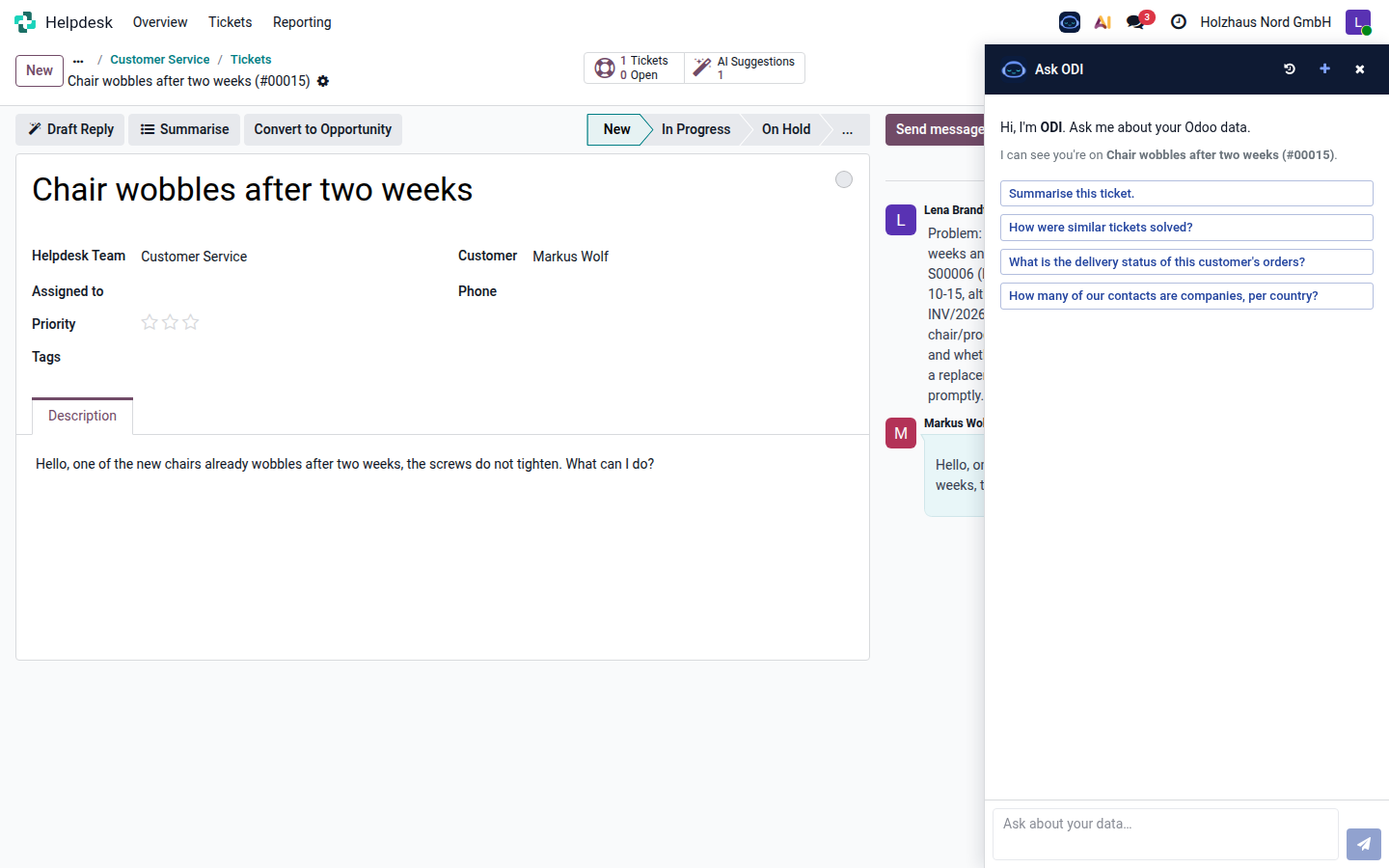
On a ticket, Ask ODI knows which record is open and suggests questions about it: summarise the ticket, how similar tickets were solved, the delivery status of the customer's orders. Each screen (tickets, opportunities, purchase orders, vendor bills, production orders) has its own suggestions, and administrators can add their own.